Managing Requests
The following types of requests are available in Key Manager:
-
Access requests describe authorizations that need to be established before certain tasks can be performed.
-
Action requests describe what needs to be done to certain keys or authorizations in order for them to be signed off.
Requests are managed on the User keys→Requests page in the Key Manager GUI. The Home→System page also lists any requests that can be processed by the currently logged-in Key Manager administrator.
The nature of a request can be determined from the request type. The possible request types in Key Manager are:
-
Accept keys (accept_keys): An application owner has deemed that this key is fine as is. No key actions are to be performed on the key.
-
Access request (authorization_request): An application owner requires new authorizations to be established. Check the details of the authorization request to determine what authorizations are required, and why.
-
Set key options (set_key_options): Authorized-key options must be set for this key. For detailed information about what options are to be set for this key, click the action-request entry to review its details. In User Portal the request type is Restrict.
-
Set validity (set_validity): Set the validity for the target key.
-
Remove keys (remove_keys): The target key is to be removed.
-
Renew keys (renew_keys): The target private-key, and all known authorized keys that correspond to the private key, are to be renewed. This includes Continue renew.
-
Restore keys (restore_keys): The target key (which is currently deleted or missing) is to be restored.
-
Provide passphrase (provide_passphrase): The passphrase of the private key is currently not stored in Key Manager, or an incorrect passphrase has been stored for the key. Provide the correct passphrase to be stored in the Key Manager system for the target key.
-
Set passphrase (set_passphrase): Set a new passphrase for the target key.
After a request is submitted from User Portal, it will be Requiring approval (requiring_approval). During this state, the request is waiting for the necessary approvals. Both application owners and Key Manager administrators are required to submit approvals in distinct stages. Each stage must be completed before the request proceeds to the next phase.
The exact approval stage of a request is described by its numerical Approval stage (approval_stage):
-
Approval stages for access requests:
-1: No pending approvals. No approval action required.
0: Pending approval from source application owners.
1: Pending approval from destination application owners.
2: Pending approval from Key Manager administrators.
-
Approval stages for action requests (excluding key renewal):
-1: No pending approvals. No approval action required.
0: Pending approval from application owners.
1: Pending approval from Key Manager administrators.
-
Approval stages for key-renewal requests:
-1: No pending approvals. No approval action required.
0: Pending approval from source application owners.
1: Pending approval from destination application owners.
2: Pending approval from Key Manager administrators.
3: Pending approval from source application owners after staging.
4: Pending approval from destination application owners after staging.
5: Pending Key Manager administrator approval after staging.
noteApproval stages may be skipped as follows:
-
Requests submitted with the Direct delegation automatically skip all the approval stages.
-
Requests submitted with the Skip owner approval delegation automatically skip any application-owner-approval stages.
-
If the access-request source is specified in free text (always when access-request setting Allowed source hosts is set to Manual), or if the access request authorizes a user-provided public key, the source-application-owner-approval stages are skipped.
-
If the access-request destination is specified in free text (always when access-request setting Allowed destination hosts is set to Manual), the destination-application-owner-approval stages are skipped.
-
If the required number of approvals for any stage is zero, the stage is skipped automatically.
For more information about application delegations, see Setting Application Owners and Delegations. For more information about application policies, see Defining Application Policies. For more information about access-request settings, see Access-Request Settings.
-
Requests waiting for Key Manager administrator approval can be processed by performing one of the following actions:
-
Approve: Approve the request on your own behalf. After the required number of approvals has been submitted for the request, Key Manager automatically starts jobs to perform the action(s) described in the request.
When approving access requests, you can modify the details of the access request before confirming your decision. You can modify or set Source and Destination accounts, Restrictions (authorized-key options) that shall be set for the authorizations, and the validity period of the authorizations. You can also send a message to the requestor (application owner who submitted the request).
-
Deny: The request is denied, preventing further decisions from being placed for this request. No jobs are performed on the target key. One Deny decision denies the entire request regardless of any Approve decisions that may have previously been submitted for the request. When denying a request, you may specify a message to the application owner, describing why the request was denied. Application owners may use this information to submit a more appropriate request next time.
-
Cancel: The request is canceled, preventing further decisions from being placed for this request. Any jobs associated to the request (either pending or running) are also canceled as soon as possible. In case of action requests, the request is also unset from the target keys on the User Portal side.
After all the approval stages have been completed (or skipped), the request proceeds to the execution phase, in which Key Manager creates and runs jobs to automatically establish the required authorizations.
With access requests, note that Key Manager is only able to automatically set up keys on hosts in the managed environment. In situations where access requests are made for external hosts, you may have to manually install keys on the specified external hosts.
The sign-off status of keys created by access requests is automatically set to accepted.
For access request that are Requiring Approval, you notify all source/destination application owners about the access request. To do this:
-
In the User Portal GUI under Access Requests, click an access request to display its details.
-
Under Source or Destination sections, click Show details to display the application owners' contact information. Click Email all to send them a notification about this access request.
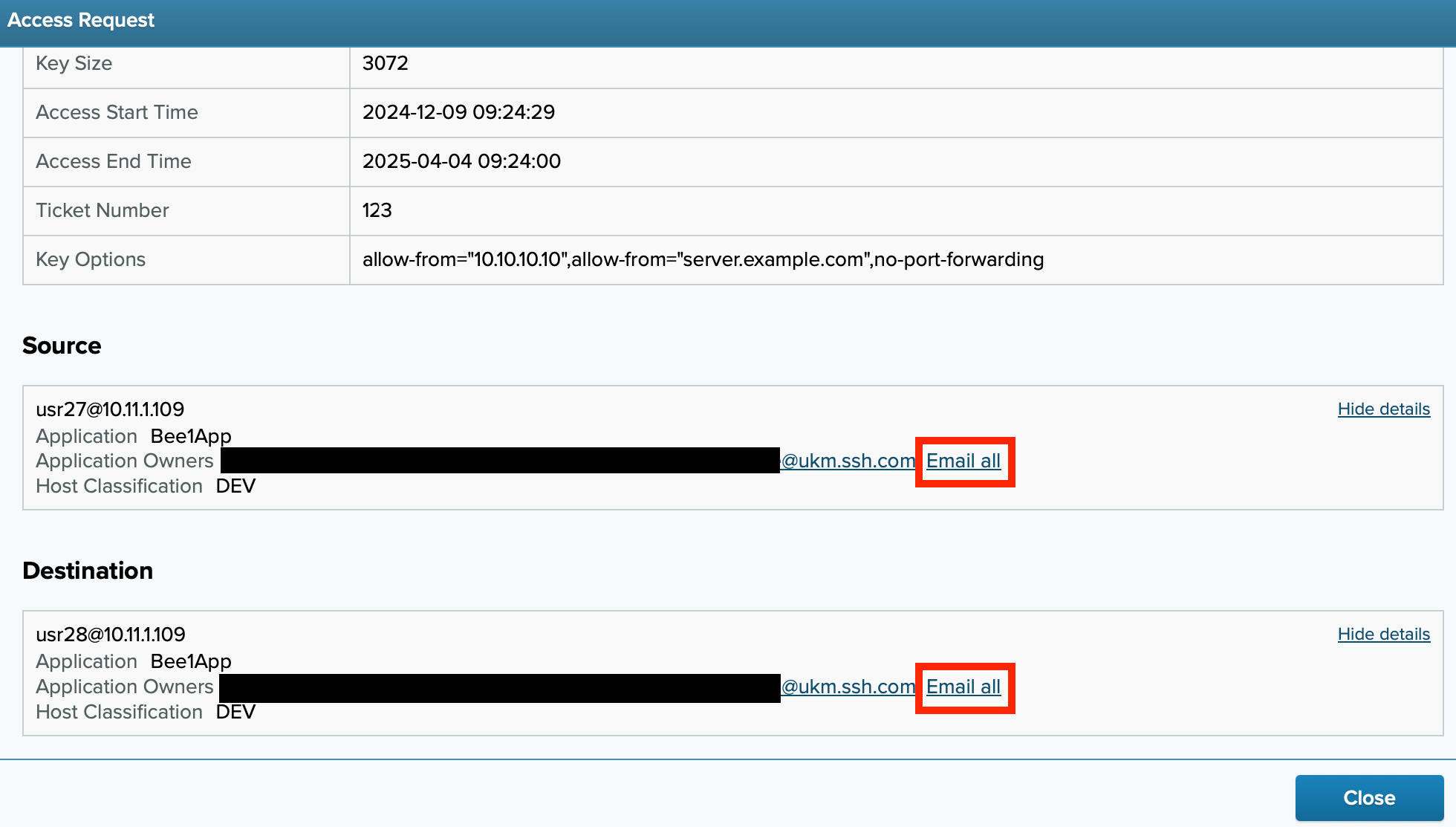
By default the application owners' emails are comma-separated. You can change the Email Separator under your account's Settings.