Setting Application Owners and Delegations
In order to allow application owners to manage application keys, they must be associated to their applications. Furthermore, applications must be set with application delegations, which are role-based permissions determining the actions an application owner can perform.
Adding and Removing Application Owners
You can add application owners to applications in the following ways:
- Add individual application owners to applications.
- Add AD groups to applications.
To add an individual application owner to the application:
-
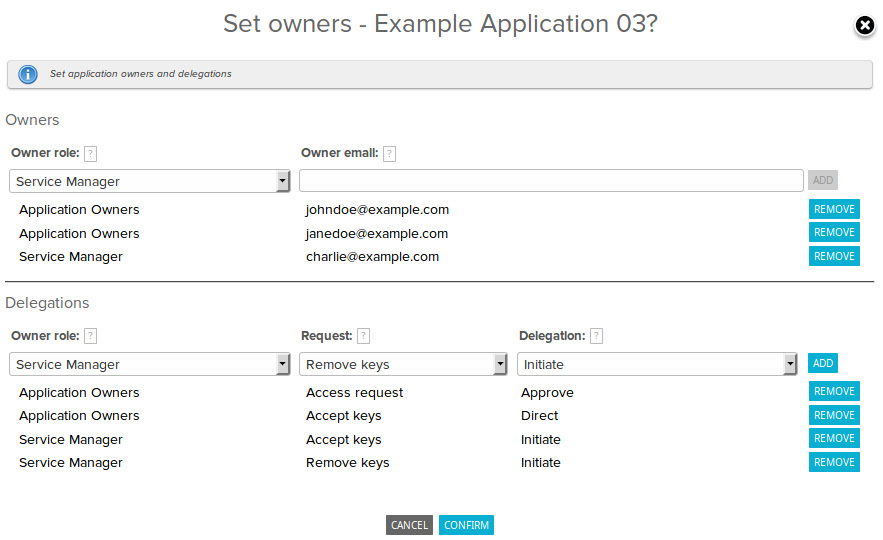
On the Applications page, perform a Set Owners action on the target application. Doing so displays the Set Owners dialog.
-
Under the Owners section, provide the following information about the application owner:
-
Role: The role to which the application owner belongs to. This is used for determining the delegations that are to be granted to the application owner.
The possible roles are defined globally within the Key Manager system, using the global setting List of allowed application owner roles.
-
Email: The email address of the application owner who is to be added to this application. This email must match the email specified for the User Portal account of the application owner.
Depending on the type of User Portal account the application owner has (either local or LDAP account), the email is specified in the local-account settings, or in the LDAP entry belonging to the application owner. In the case of LDAP the given email address must also exist in LDAP.
-
-
Click Add to assign the application owner with the specified Role and Email to the application.
To remove an application owner from the application:
- Click Remove next to the application-owner entry that you want to remove.
To add an AD group to the application:
-
The AD server must be set up in both User Portal and Key Manager.
AD setup in User Portal is described in Managing AD Accounts. For more information about AD setup in Key Manager, refer to the PrivX Key Manager Installation Manual.
-
In the Key Manager GUI, on the Applications→Application owner mappings page, click Create New Application Owner Mapping. You will need to provide the target AD group, and either or both of the following:
- The applications the group is added to.
- The application-owner roles granted to the AD group.
Click Confirm to save your settings.
To remove an AD group from applications:
- In the Key Manager GUI, on the Applications→Application owner mappings page, Delete the mapping for the AD group.
AD users belonging to multiple groups can inherit application-owner roles from every applicable mapping. For example, if a user belongs to the AD groups Group 01 and Group 02, which are mapped to the Initiator role to applications App 01 and App 02 respectively, the user becomes an Initiator in both applications.
Application owners from AD groups are displayed on the Applications→Application owners page only if they have accessed User Portal at least once.
Changes to application-owner memberships are applied periodically (every 24 hours by default, to reduce system load). You may manually refresh memberships from the Applications page, by clicking Refresh applications.
Adding and Removing Application Delegations
Application delegations are permissions specifying what application owners are allowed to perform. These delegations are granted, in a role-based fashion, to application roles. Application owners belonging to those roles inherit the delegations granted to their role.
To grant a delegation to a role within an application:
-
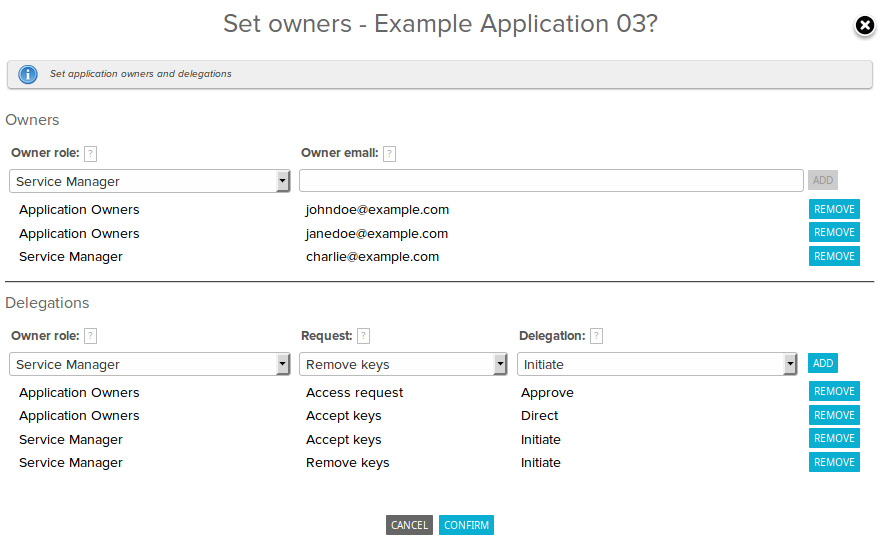
On the Applications page, perform a Set Owners action on the target application. Doing so displays the Set Owners dialog.
-
Under the Delegations section, specify the delegation using Role, Request, and Delegation.
-
Click Add to add the delegation. Application owners belonging to the specified Role are immediately granted with the specified Delegation over the specified Request type.
To remove a delegation from the application:
- Click Remove next to the delegation entry that you want to remove. The delegation is removed immediately.
More permissive delegation levels permit all the functionality allowed by the less permissive levels. For this reason, when multiple delegations are given to the same role and request, the most permissive of the delegations is applied. For example, if a role is given both Initiate and Direct delegations for a certain request type, that role effectively has Direct delegations over the request type.
Changes to application-owner delegations are applied periodically (every 24 hours by default, to reduce system load). You may manually refresh delegations from the Applications page, by clicking Refresh applications.