Signing Off Application Keys
In this example, we illustrate the process for creating, submitting, approving, and executing key-action requests.
Application owners can use User Portal to submit key-action requests. Key-action requests describe the actions that should be performed on a key. For example, you can submit a key-removal request to delete keys that are no longer used, or to restrict what an authorization is used for and where it may be used from.
Typically, each key-action request must go through an approval process before the requested changes are executed: A request may require approvals from other application owners and/or from Key Manager administrators, or from nobody at all. The exact approvals required by a request depend on the approval policy of the application to which the target keys belong to, and on the delegations of the application owner who submitted the request.
The examples in this section assume that your applications have been set with the default approval policy, requiring one Key Manager administrator approval and no application-owner approvals for each type of request. You should be able to run this example directly if you have created User Portal local accounts and set up applications as explained in Creating User Portal Accounts and Setting Up Key Manager Applications respectively.
-
Access the User Portal as an application owner. In this example we use the application-owner account alice that was created earlier.
-
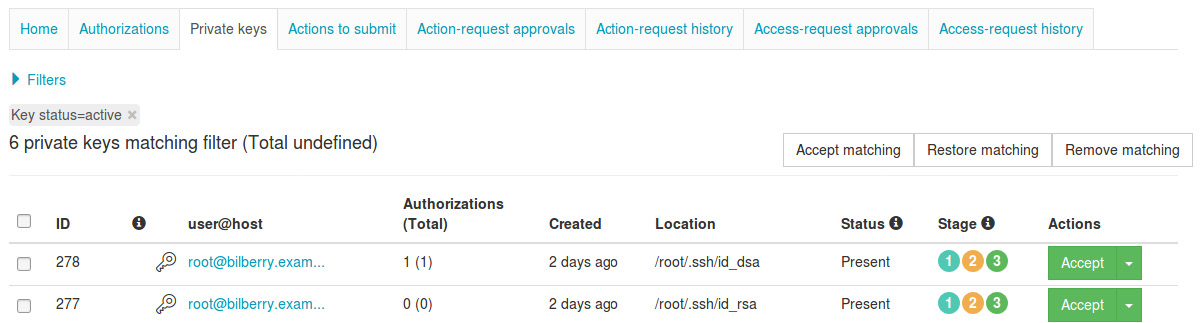
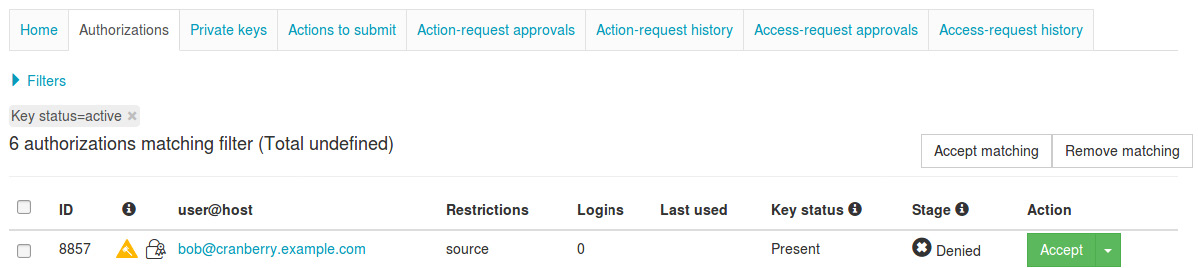
Navigate to the Authorizations page of an application you own.
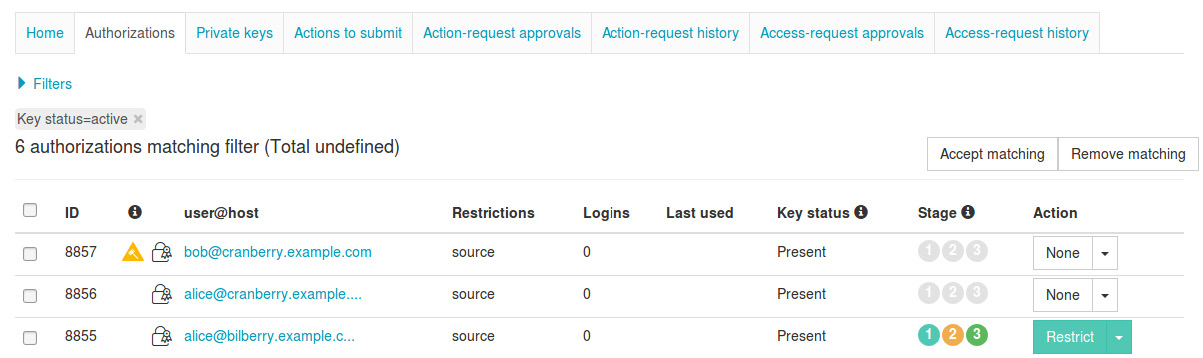
To list the requests that you can submit for a key, click its Action button:

In this example, we select Accept. After you have selected a key-action request for a key, its list entry should indicate the chosen request type. You can also see that the signoff Stage of the key has proceeded to 1. This indicates that a request has been created for the key, but the request has not been submitted to Key Manager yet.

You can select multiple keys and set a request for all of them:

The selected action should be set for all the previously selected keys:

-
After you have created requests for some application keys, you will need to submit them to Key Manager. To do this, navigate to the Submit actions page of the application.
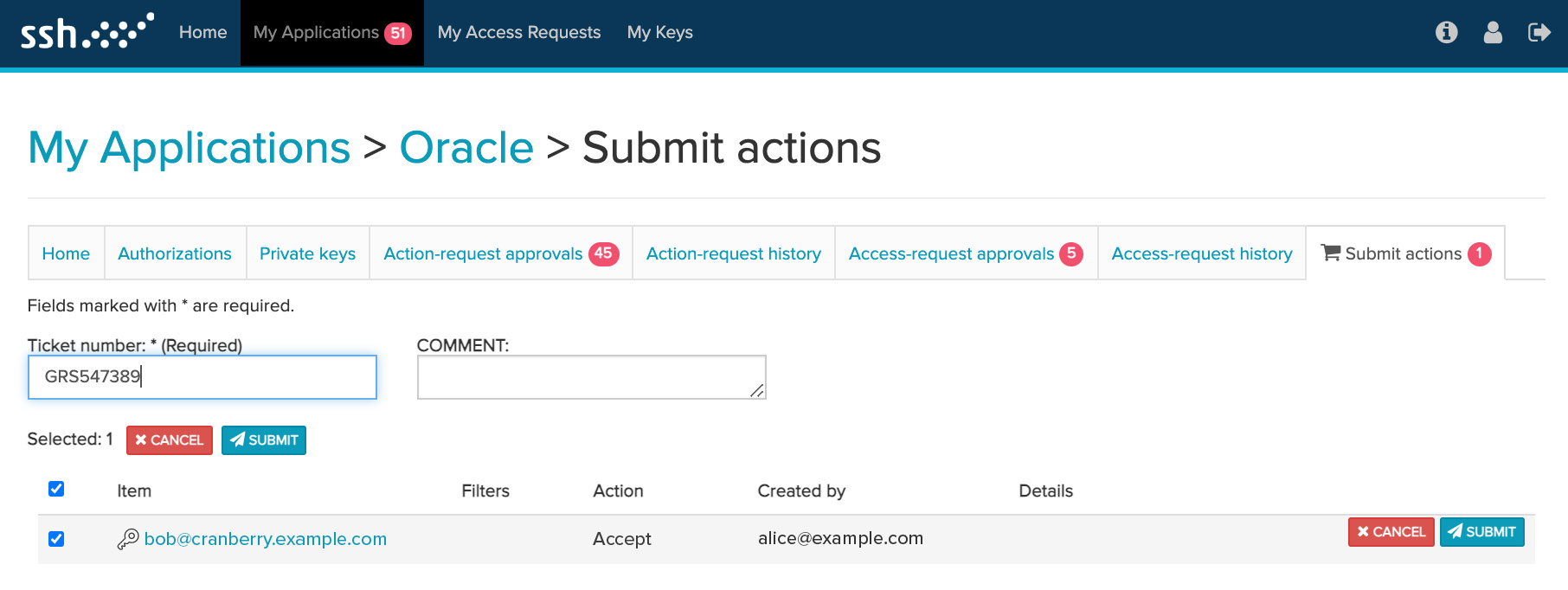
To submit all the created requests, click Submit.
User Portal displays the status of the submitted requests, similarly to the following:
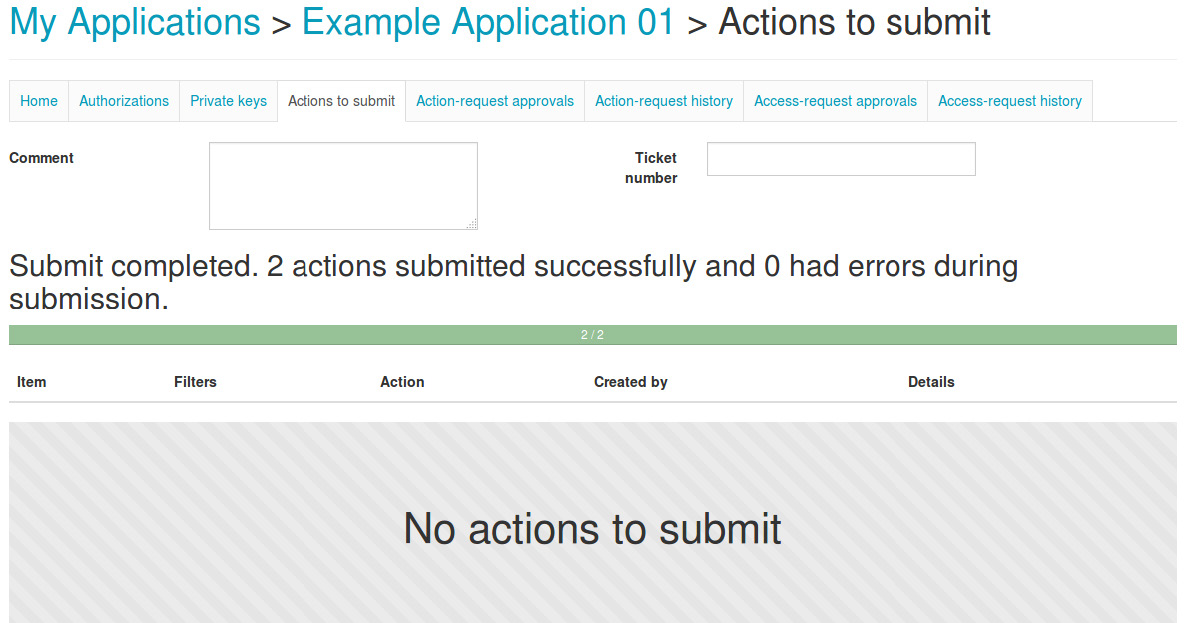
The target keys have also proceeded to stage 2, meaning that requests for the keys have been submitted, and they are waiting for approval.

-
By default, requests need to be approved by one Key Manager administrator. To review and approve key-action requests, access the Key Manager GUI as a Key Manager Administrator, then navigate to the User keys→Requests page. The previously-created requests should be listed on this page.
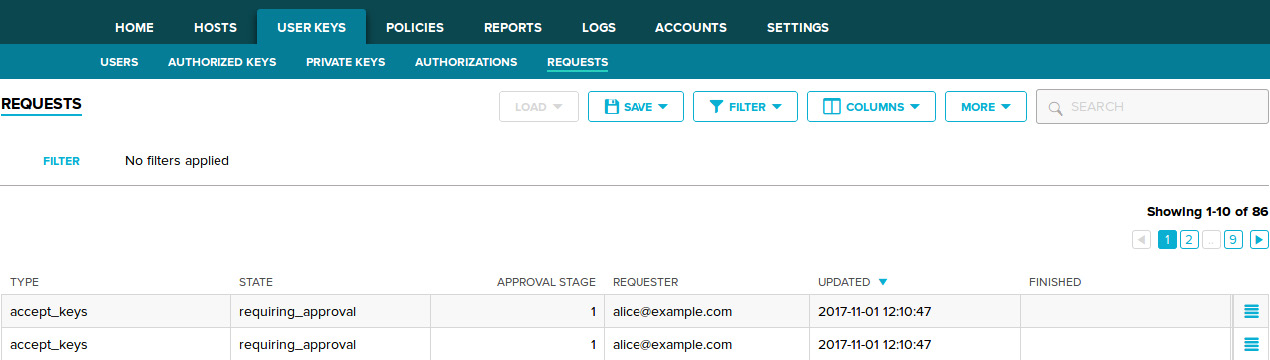
You may click a request entry to display its details, such as the target keys of the requests.
To approve a request, perform an Approve action on it:
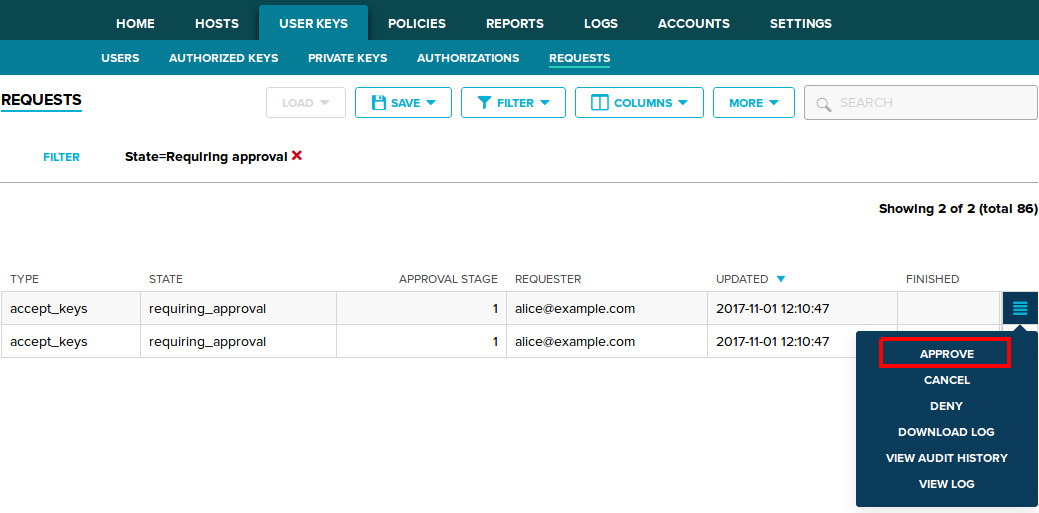
After a request is fully approved, Key Manager launches jobs to automatically update the target keys in accordance to the requested changes.
In a similar fashion, we can Deny a request:
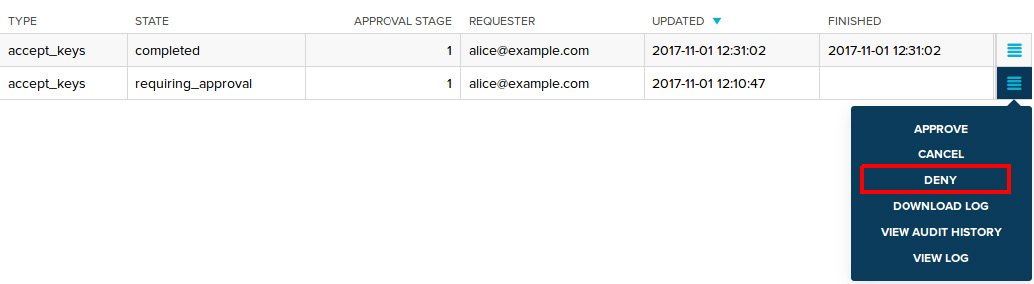
When a request is denied, no jobs are launched, and the target keys are not modified in any way.
Back in the User Portal GUI, application owners are updated about the status of the requests.