Managing Access Requests
This example illustrates the procedures for creating, submitting and approving access requests. Specifically, this example features access requests where an application owner wants to authorize to a host account in the managed environment using an authorized key provided by the application owner themselves.
Application owners can request for new authorizations to be established in the managed environment. For example, when an application needs to access additional network resources via SSH, or when a new employee requires SSH access to network resources that are relevant to their job, you can submit an access request to indicate what authorizations need to be created.
Access requests can be created by any application owner with access to the User Portal GUI. After creation, access requests need to undergo approval in accordance to the approval policies set for applications.
In this example, we assume that you are using default approval policies, requiring one Key Manager administrator approval and no application-owner approvals for access requests.
-
Create a unique SSH key pair on any account. The account does not need to be in the managed environment. You can create a new key, for example, using a command similar to the following:
$ ssh-keygen -t rsa -b 2048This key pair shall later be used for authorizing to an account in the managed environment.
-
To start creating an access request, access the User Portal GUI. Under the My pending access requests section of the Home page, click +New.
-
Provide the information related to the access request. In this example we want to create an access request that authorizes our previously-created key pair to an account in the managed environment. To achieve this we provide the following choices (fields that are not mentioned can be left with their default values):
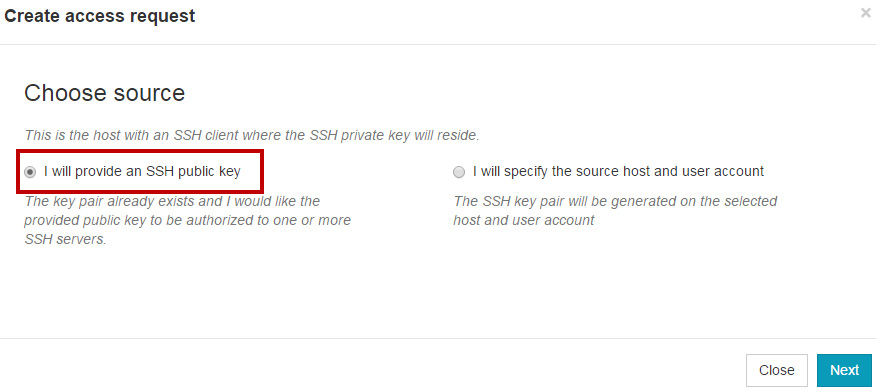
i. Choose source: Select I will provide an SSH public key.
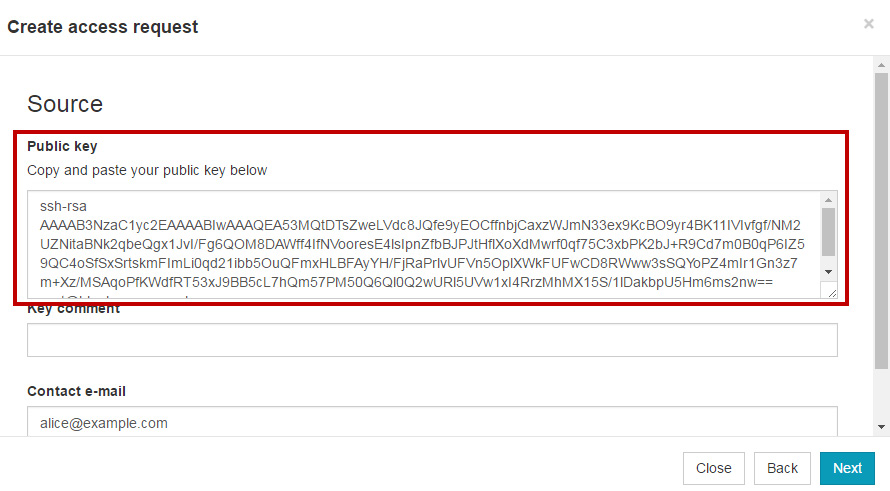
ii. Source: Under Public key, provide the public-key data of your previously-created key.
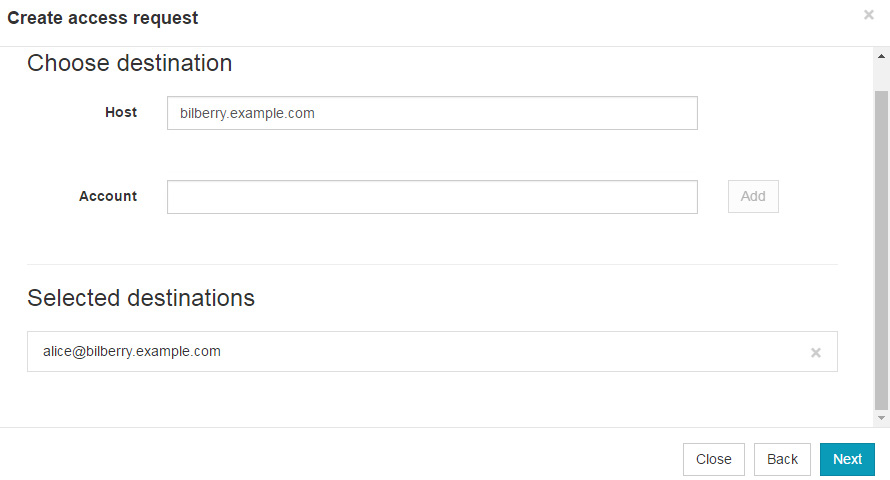
iii. Choose destination: Choose the destinations to which the public key is authorized. To specify a destination, select a host and an account, then click Add to add that destination. You may add one or more destinations.
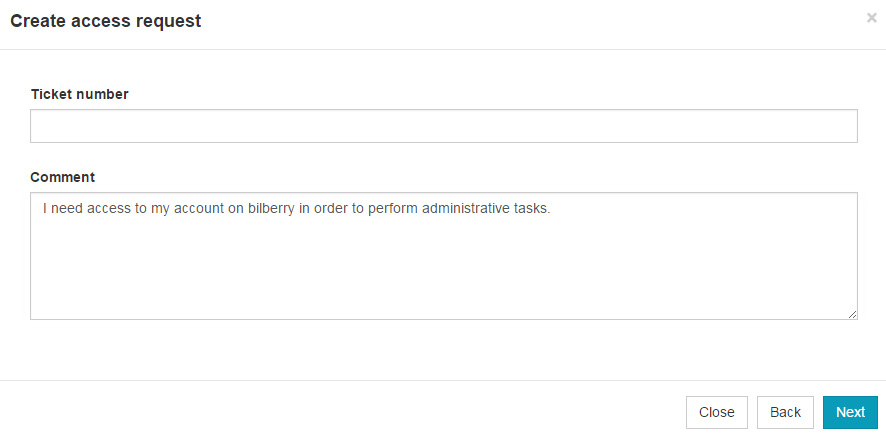
iv. You may optionally provide a comment, where you can explain the reasons you need the authorization. The comment is displayed to all who are responsible for approving the access request.
v. Restrictions: You may restrict the addresses from which the authorization can be used from, and the command that can be run with the authorization. For the purposes of this example these are left unrestricted.
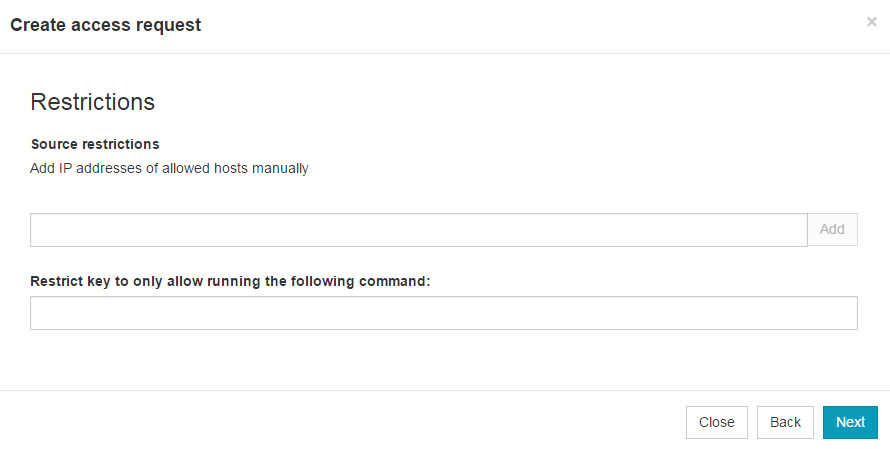
After you have provided the access-request information, click Create to create and submit the access request.
The status of your access requests is displayed on the Home page.

-
The newly-created access request is waiting for Key Manager administrator approval. To submit the necessary admin approval, access the Key Manager GUI, then navigate to the User keys→Requests page. Here you can review and approve access requests.
Approve the previously-created access request:
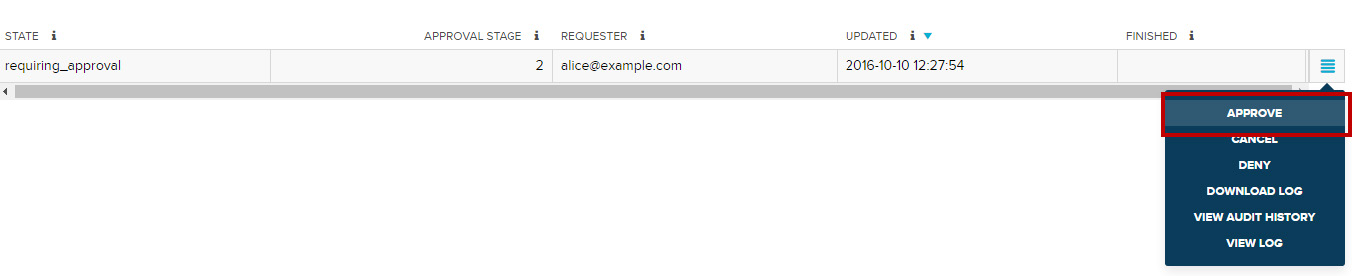
When approving, you may change the details of the access request, such as the destinations to which the key is actually authorized, and the restrictions of the key. To approve the request, click Confirm.
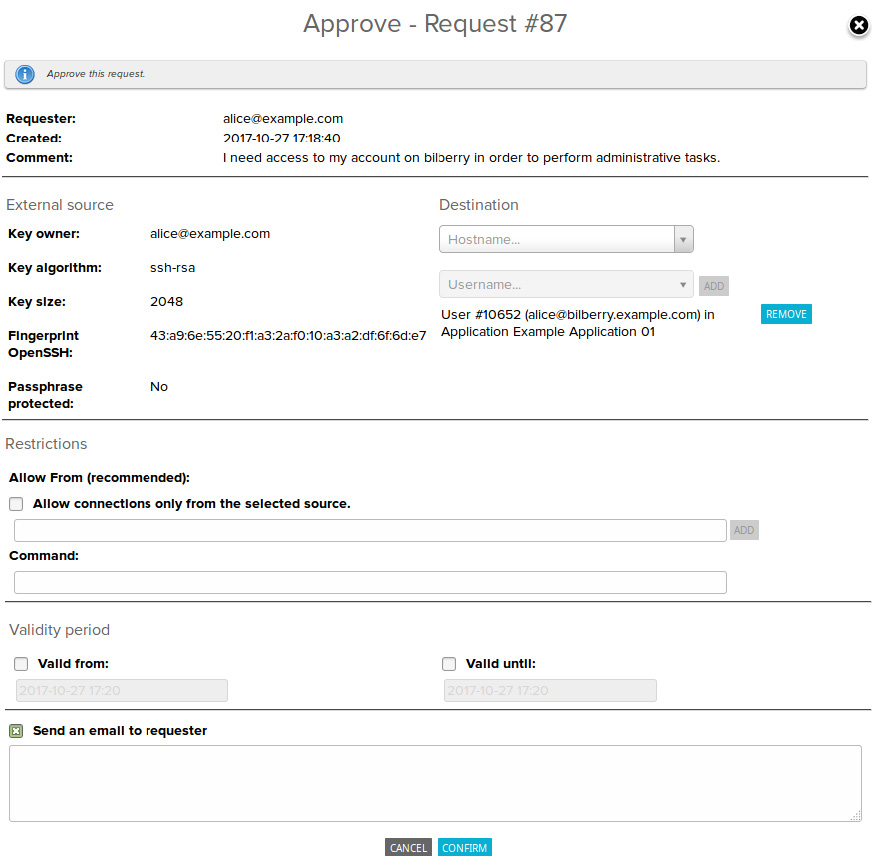
Key Manager launches jobs to automatically create the necessary authorizations. After the jobs finish, you can use your previously-created SSH key pair to access the destination accounts specified in the access request.