Setting Up Key Manager Applications
This section illustrates topics related to Key Manager application management:
- Creating Key Manager applications.
- Associating user keys to applications.
- Assigning application owners to applications.
- Setting application-specific permissions for application owners.
A Key Manager application represents a semantic group of user keys that should be managed by a certain group of application owners. In Key Manager, applications define what user keys are managed by each application owner, and the allowed operations application owners can perform on keys.
A real-world example of an application could be a network service that uses SSH keys for accessing other network resources. Examples of such services include network-monitoring tools, and automated backup utilities. Personnel responsible for operating and maintaining these network services are considered application owners.
An application is created as follows:
-
Access the Key Manager GUI with an account that has permissions for managing applications. For example, you may use a Key Manager account with the Administrator role.
-
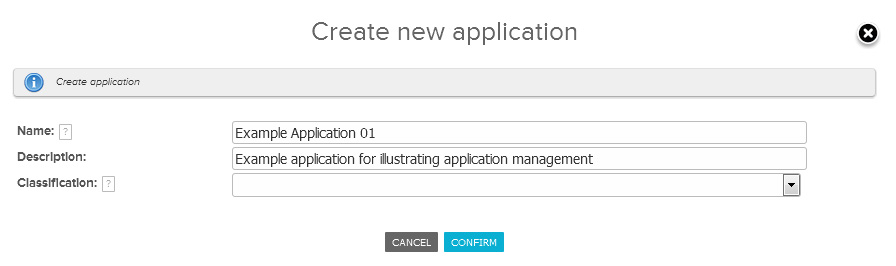
In the Key Manager GUI, navigate to the Applications → Applications page. Click Create New Application.
Provide at least a name for the application.
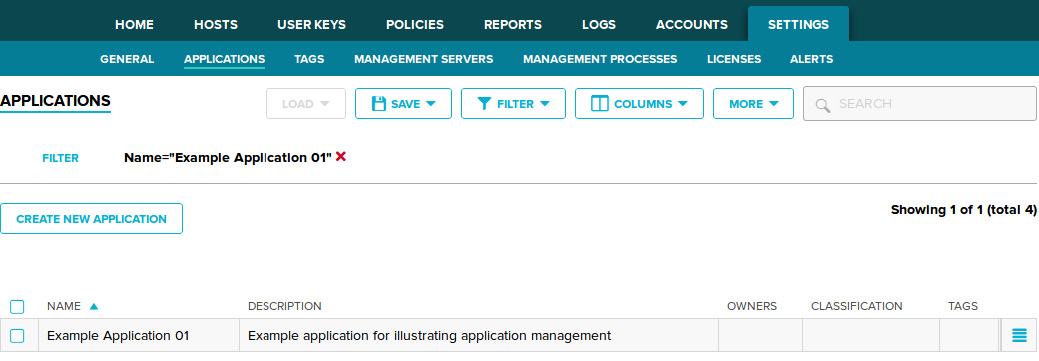
The new application should now be listed on the Applications → Applications page.
After you have created a new application, specify the user keys that belong to the application.
Note that you cannot associate individual keys to applications. However, you can assign hosts and/or user accounts to an application. Any keys belonging to the specified hosts and/or user accounts shall belong to the application, and are subsequently manageable by the application owners assigned to the application.
In this example, we shall associate hosts (and any keys on those hosts) to the previously-created application:
-
On the Applications → Applications page, click
 to display the available actions for your application, then click Associate Keys.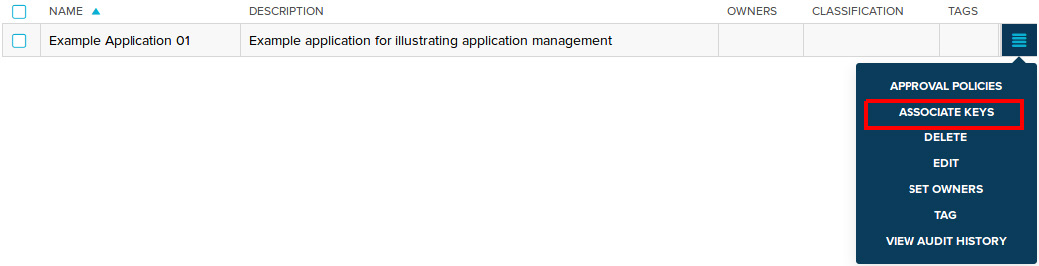
-
Specify some host(s) to be associated to the application.
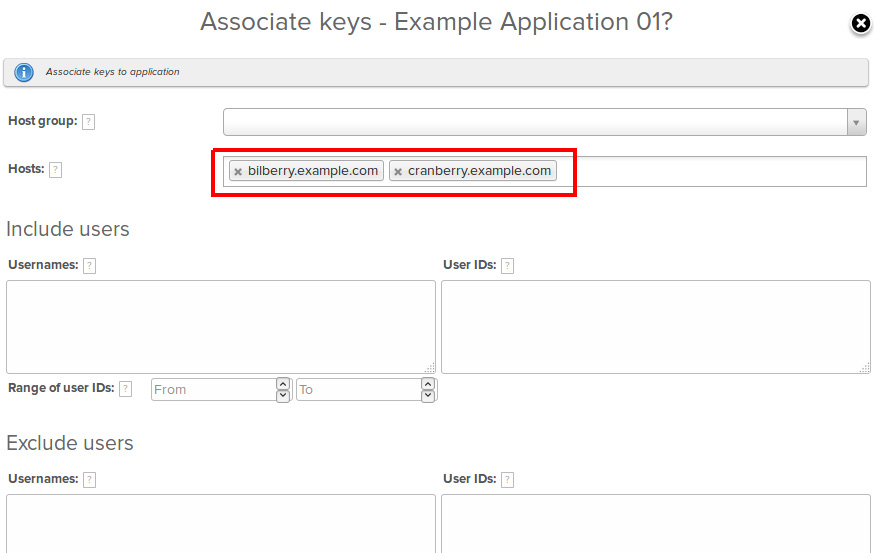
Click Confirm to apply your changes.
The specified hosts have been associated to the application. Any keys on those hosts automatically belong to the application.
-
(Optional) On the User keys → Authorized keys, and the User keys → Private keys pages, you can filter by Applications to determine the exact keys that were associated to the application.
-
Finally, we need to add application owners to the application, and give them permissions for performing actions on the application keys:
-
Define the allowed application-owner roles. Similarly to Key Manager roles, application-owner roles are used for associating delegations (application-related permissions) to application owners.
Navigate to the Settings → General → Global page, then in the List of allowed application roles setting, specify the names of the allowed application-owner roles. If you want to specify more than one application-owner role, separate individual entries with commas. The names of application-owner roles can be chosen arbitrarily. For example, to allow the application-owner roles Application Owner, and Service Manager, set the following value:
Application Owner, Service Manager.
Click Apply to save your changes.
-
Go back to the Applications → Applications page, click
to display the available actions for your application, then click Set Owners.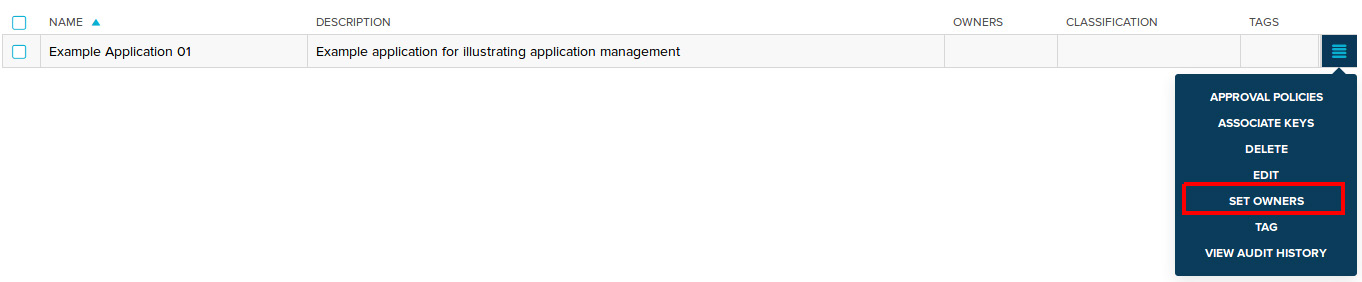
-
Assign application owners to the application by providing the Owner role and the Owner email. The Owner email must match the email address set in the User Portal account of the user. Click Add to add the application owner.
You will also need to set delegations, which determine what application owners are allowed to do for the application keys. To add a delegation, specify the Owner role to which the delegation is applied, select the Request type for which the delegation is granted, and the Delegation type itself.
In this example, we add the User Portal user alice (with email alice@example.com) with the
Application Ownerrole. We then add a delegation for theApplication Ownerrole that allows the members of the role to Initiate Accept Keys requests. Effectively, this means thataliceis able to create and submit requests for accepting application keys.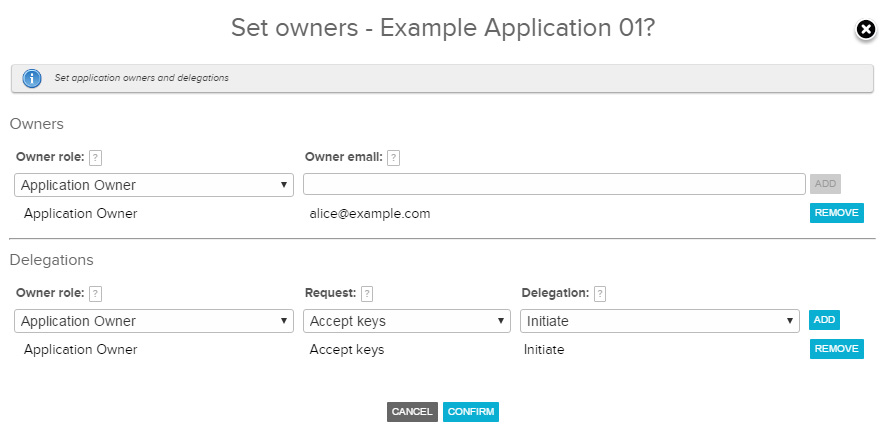
Click Confirm to apply your changes.
-
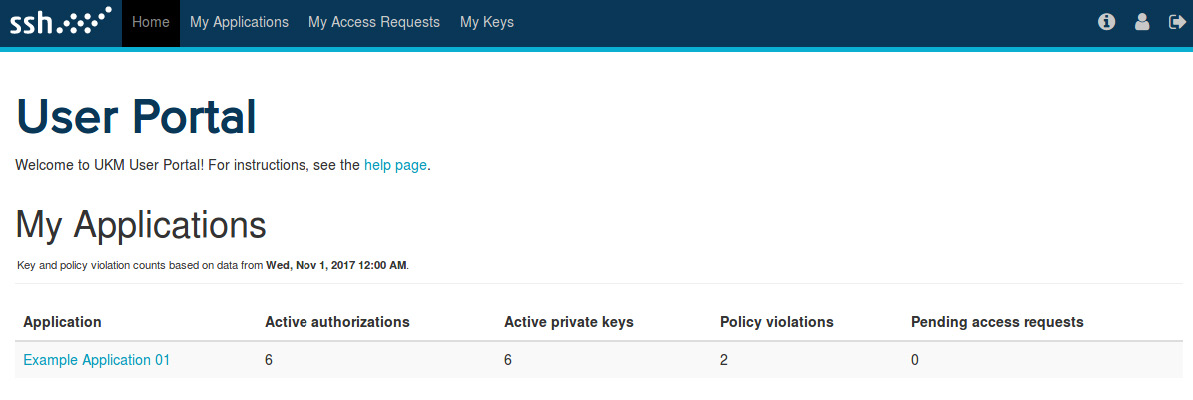
Log into the User Portal GUI as alice. You should now see the application listed under My Applications.