Defining Policies in the Managed Environment
Policies define the security standards that your managed environment is expected to conform to. For example, a policy can define the minimum acceptable bit length for SSH user keys, or the set of users and sources that are allowed to access particular hosts. After policies have been defined, Key Manager can be used to detect and flag items (such as SSH keys) that violate policies. Key Manager administrators and application owners can then review and remediate such items.
In this example we shall create some cryptographically weak keys, create a policy for finding such keys, then validate the managed environment against the policy to flag those keys for all to see:
-
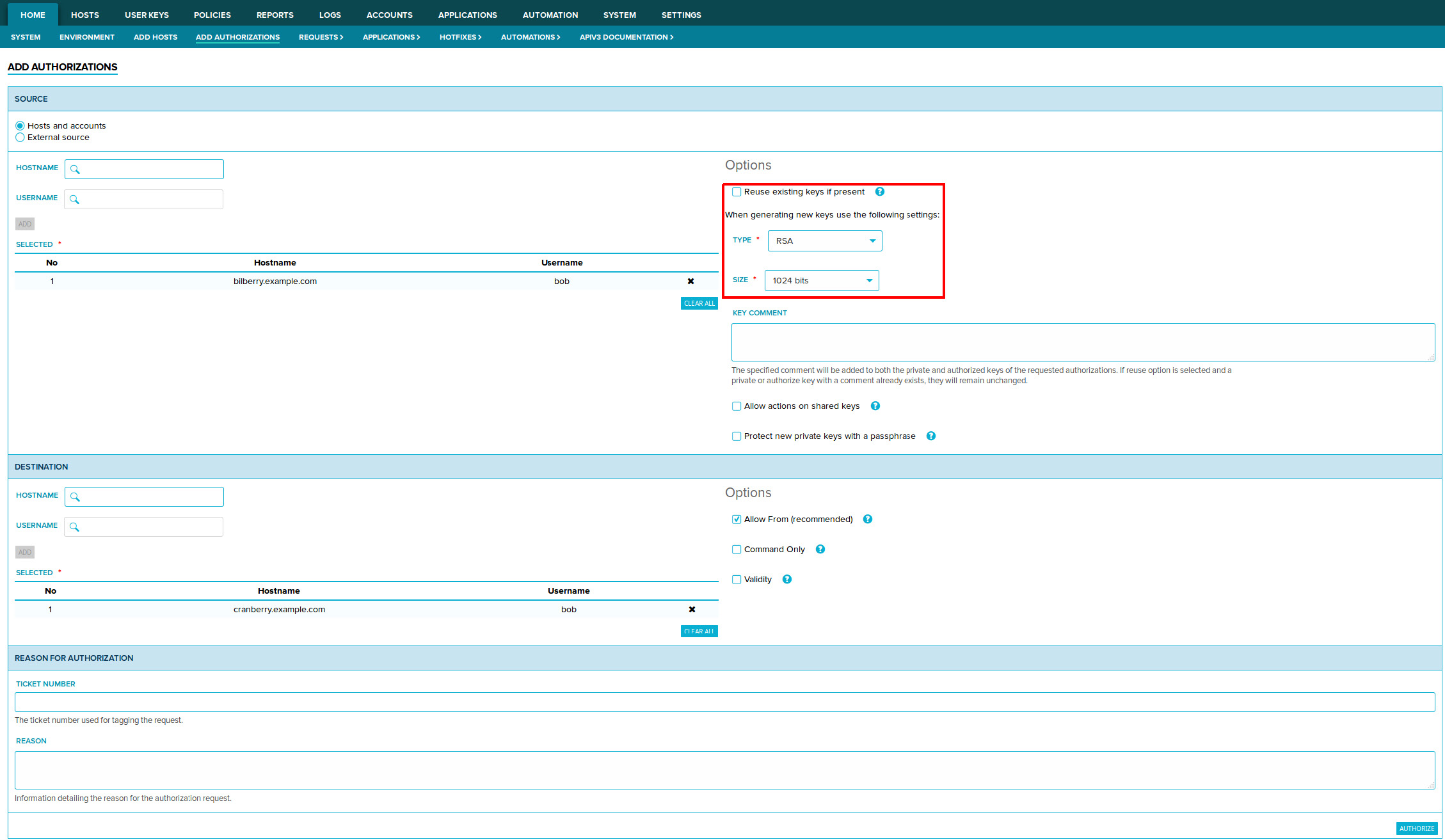
For the purposes of testing automatic policy validation, create some cryptographically weak user keys. In this example, we use Key Manager to create authorizations with 1024-bit RSA keys.
-
To start creating a policy, navigate to the Policies→Policy rules page, then click Create New Policy Rule
-
In this example, we create a policy that disallows all RSA keys shorter than 2048 bits. To do this, select the policy type Cryptographic policy. Also specify a minimum of 2048 bits for RSA.
We recommend adding additional descriptions to the policy, including possible impact from items that break the policy, and recommended actions for remediating violating items. Other Key Manager administrators and application owners can use this information to help them remediate violating items in the future.
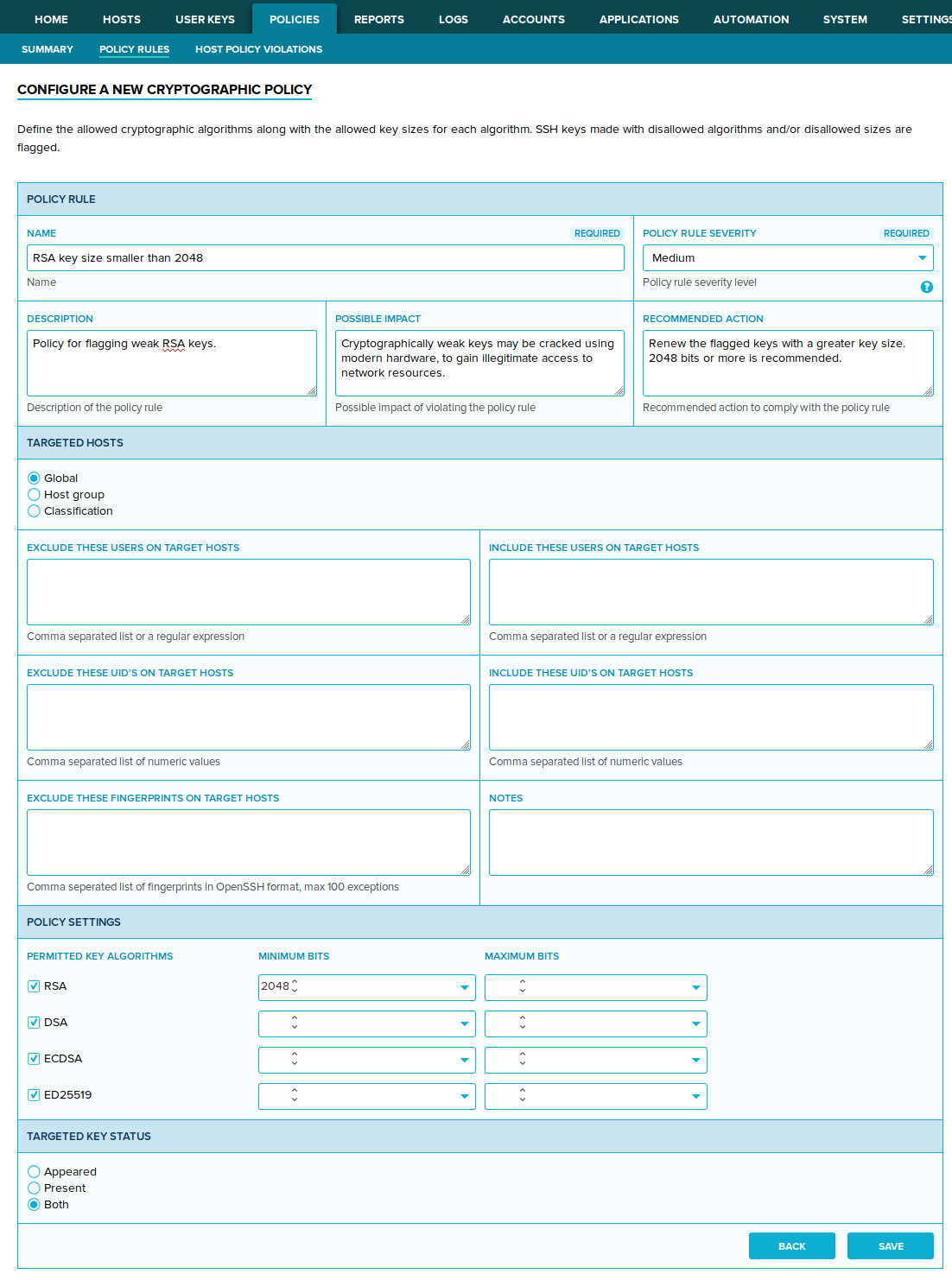
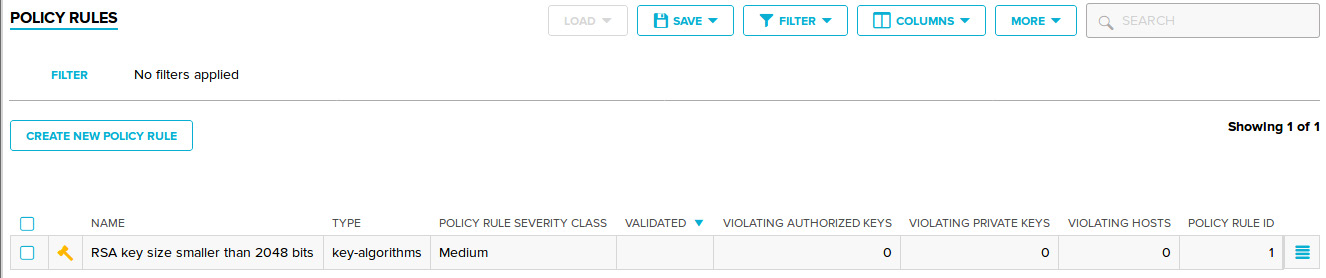
Click Save to add the new policy. The policy should now be displayed on the Policies→Policy rules page.
By default, items in Key Manager lists do not display their full information. Click a row (not its checkbox, nor its
 icon) to display its details panel, which contains additional information about
about the item.
icon) to display its details panel, which contains additional information about
about the item.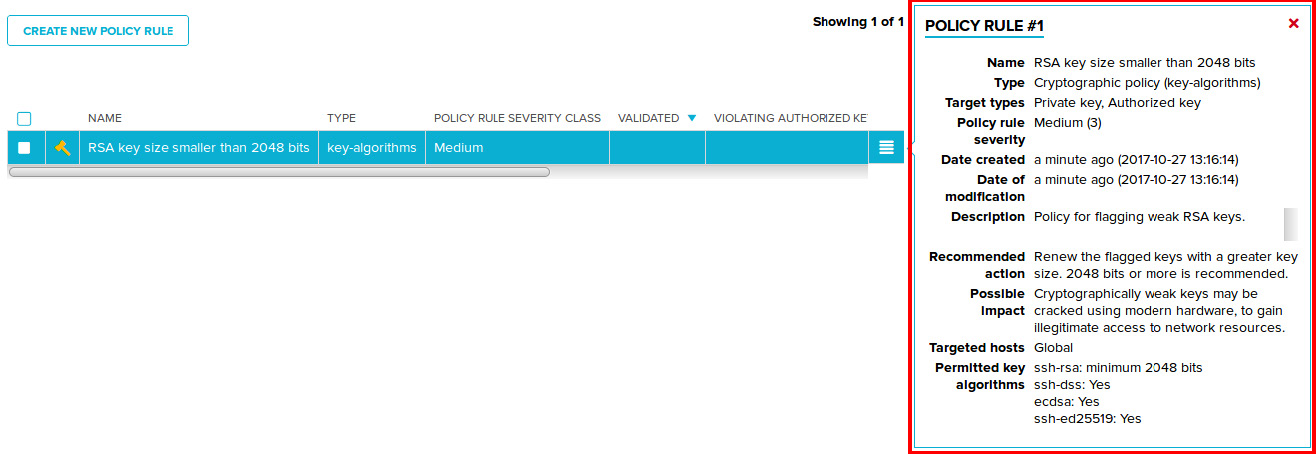
-
To find user keys that violate the policy, you will need to validate the managed environment against the policy. This is done by performing a Validate action on the policy.
To perform an action on a policy, click the action menu (
icon) in your policy entry, then select
Validate.You will receive a confirmation dialog that describes the selected action, and prompts you for confirmation. When prompted, click Confirm to start the validation job.
Wait for the policy-validation job to finish. You may track the progress of the validation job (policy- validate-job) on the Logs→Jobs page.
-
After the policy is validated, its details become available on the Policies→Summary page. Here you can see compliance statistics, and quickly jump to items that violate the policy.
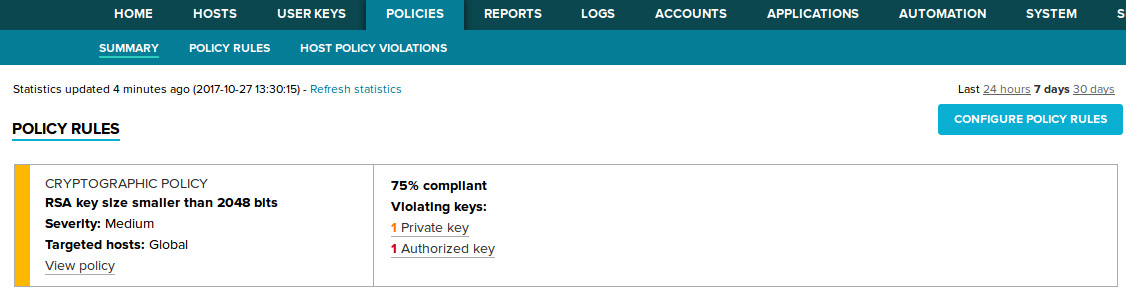
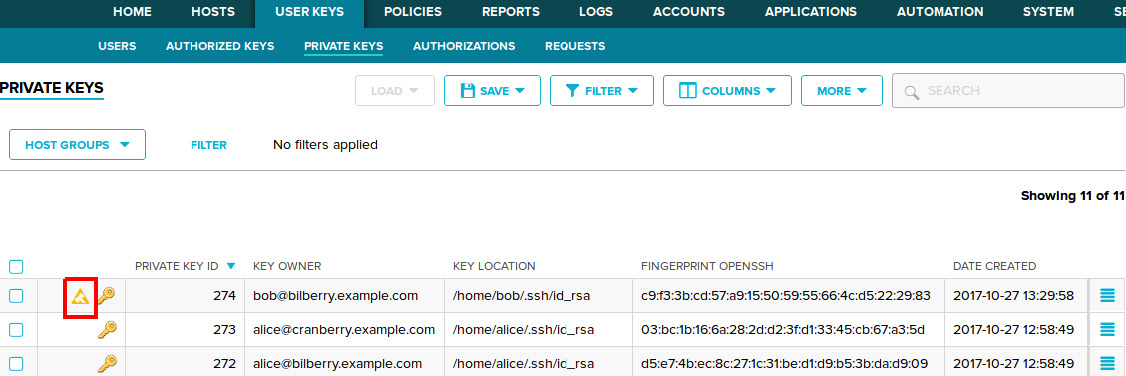
All All keys that violate the policy are also flagged with a
 logo (the color of the logo may differ
depending on the total severity of the policies it violates).
logo (the color of the logo may differ
depending on the total severity of the policies it violates).