Creating User Portal Accounts
This section illustrates how to obtain access to the User Portal:
- Creating local accounts.
- Logging into the User Portal GUI.
- Logging out of the User Portal GUI.
Application owners use User Portal accounts to perform operations via the User Portal GUI. A local User Portal account can be created as follows:
-
Access the Management Portal of your User Portal.
https://userportal.example.com/admin/ -
In the Management Portal, navigate to the Local users page. You will need to at least provide the account credentials, and the email address of the account owner. For evaluation purposes you may use fake email addresses.
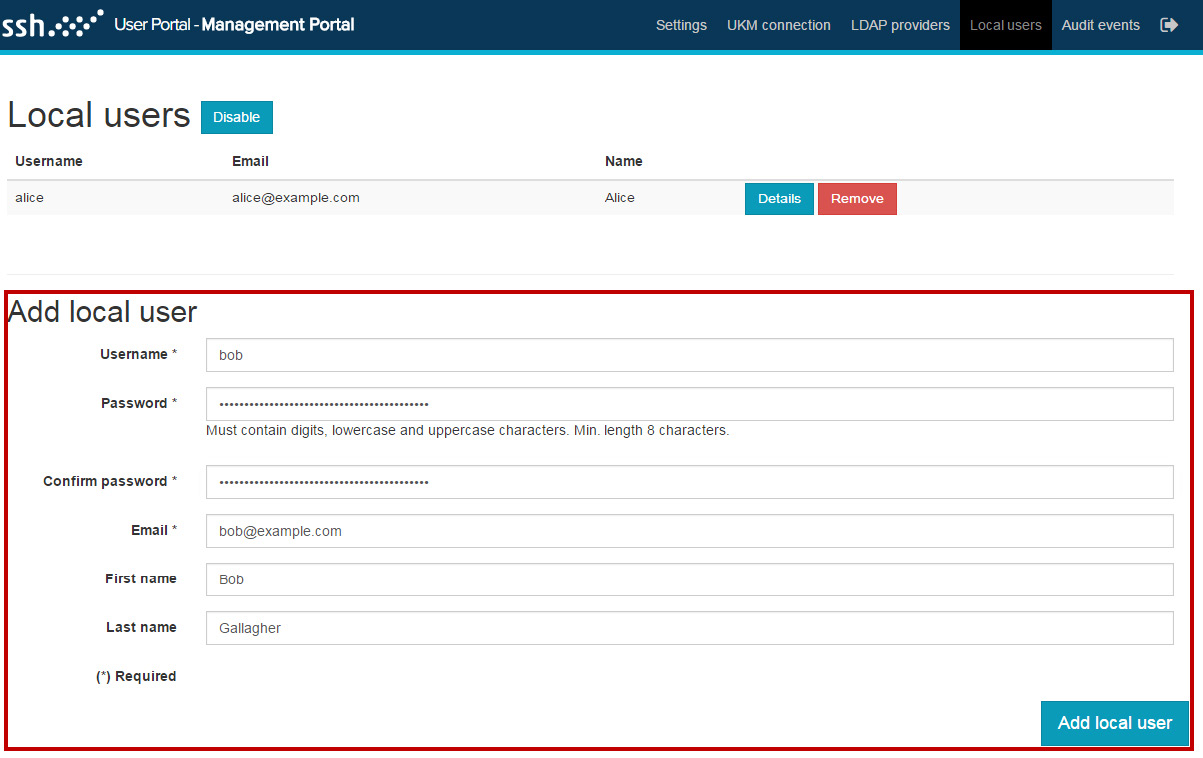
Click Add local user to add the local user account. The account is displayed under the
Local userssection after it has been created.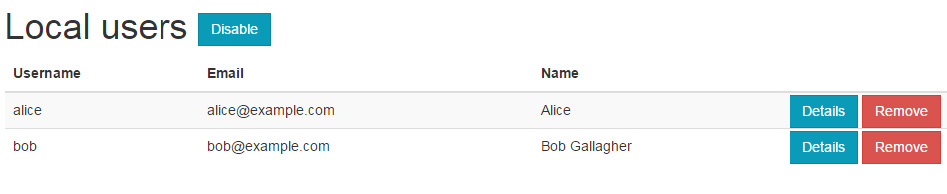
For the purposes of other use cases in this chapter, we use the user accounts alice and bob.
After you have created local user account(s), try logging into the User Portal GUI:
-
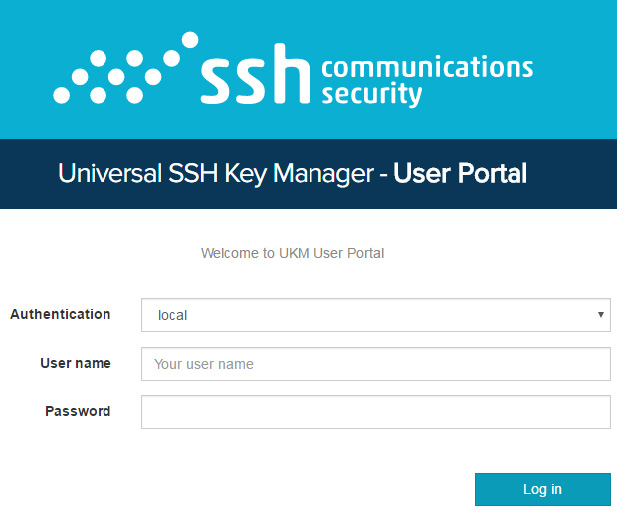
Navigate to the address of your User Portal server. You will arrive at the User Portal login page.
-
Make sure that Authentication is set to local when logging in with local accounts. Provide the user name and the password of a User Portal account, then click Log in.
You will arrive at the User Portal Home page.
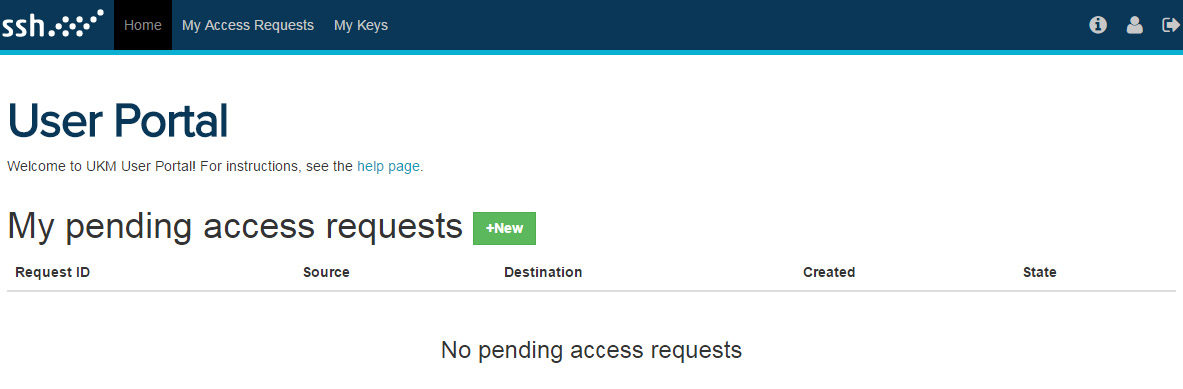
For now the User Portal GUI does not display any application keys. To display information about application keys, you will still need to do the following:
- Associate user keys to an application.
- Associate the application owner to that application.
The instructions for these procedures are provided in the following examples.
You may log out any time by clicking
 at the upper right of the page.