API-Connection Setup
User Portal needs to connect to the Key Manager API to retrieve key-management data. The high-level workflow for setting up an API connection for User Portal is as follows:
-
Create an API token for the API user. This token shall be used by User Portal to authenticate and authorize to the API.
-
Set up the API connection in User Portal.
To create an API token:
-
Access the Key Manager GUI as the user user_portal_max using the password created during the quick setup, as shown in Setting Up Key Manager.
-
To create the required API token, navigate to the Accounts→API tokens page. Then click Create New Token.
Specify the owner of the token. This needs to be the name of the previously created account. Also specify a validity period for the token.
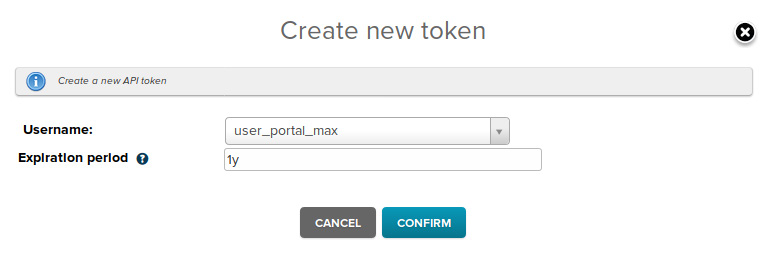
Click Confirm to create the new token.
-
You will then need to download the API token. To do this, perform a Download Token action on the token. Provide the credentials of the currently logged in user (not the credentials of the token owner) to complete the action.
Click Confirm to download the API token to your machine as a text file. The text file contains a short text composed of random letters. The following is an example of the token-file contents:
Wg7ASgddKzXwEStPoUvMDzwYO3NDFj
After you have created the API token, set up the API connection as follows:
-
Access the Management Portal of your User Portal.
https://userportal.example.com/admin/ -
In the Management Portal, go to the PKM connection page.
Set up the API connection by providing the address of your Key Manager server. Select Token as the API Authentication Method and provide your API-token (the text in the token file that was downloaded previously). In evaluation deployments the Key Manager server is most likely using self- signed certificates. For this reason you need to set Verify certificate to No to successfully establish API connections.
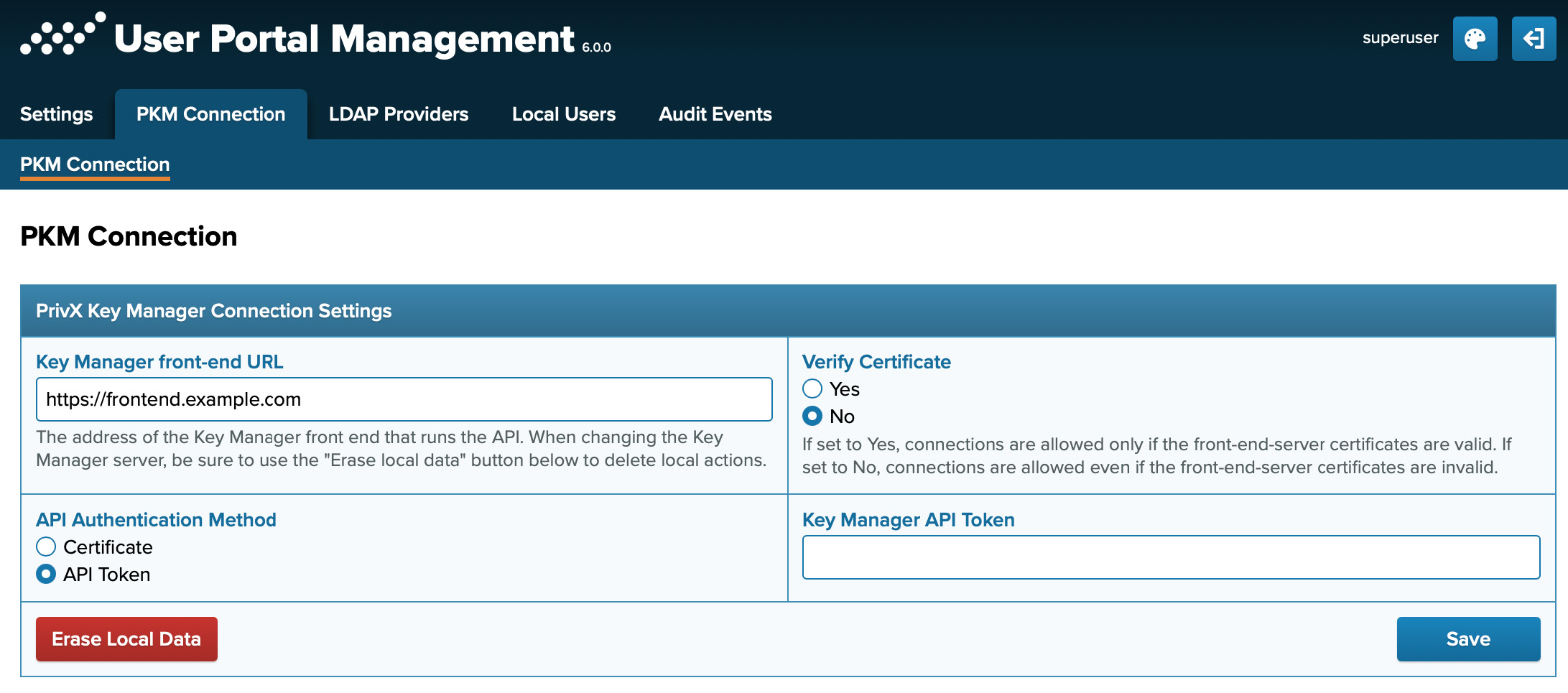
Click Save and test connection. You will get the following message if the configurations are correct:

API-connection setup is now complete.