Adding Hosts to Key Manager
A host must be added to the managed environment before you can manage its SSH keys and configurations. This example illustrates how to add hosts to the managed environment in agentless mode, one host at a time.
-
Navigate to the Home page and click Add Hosts.
-
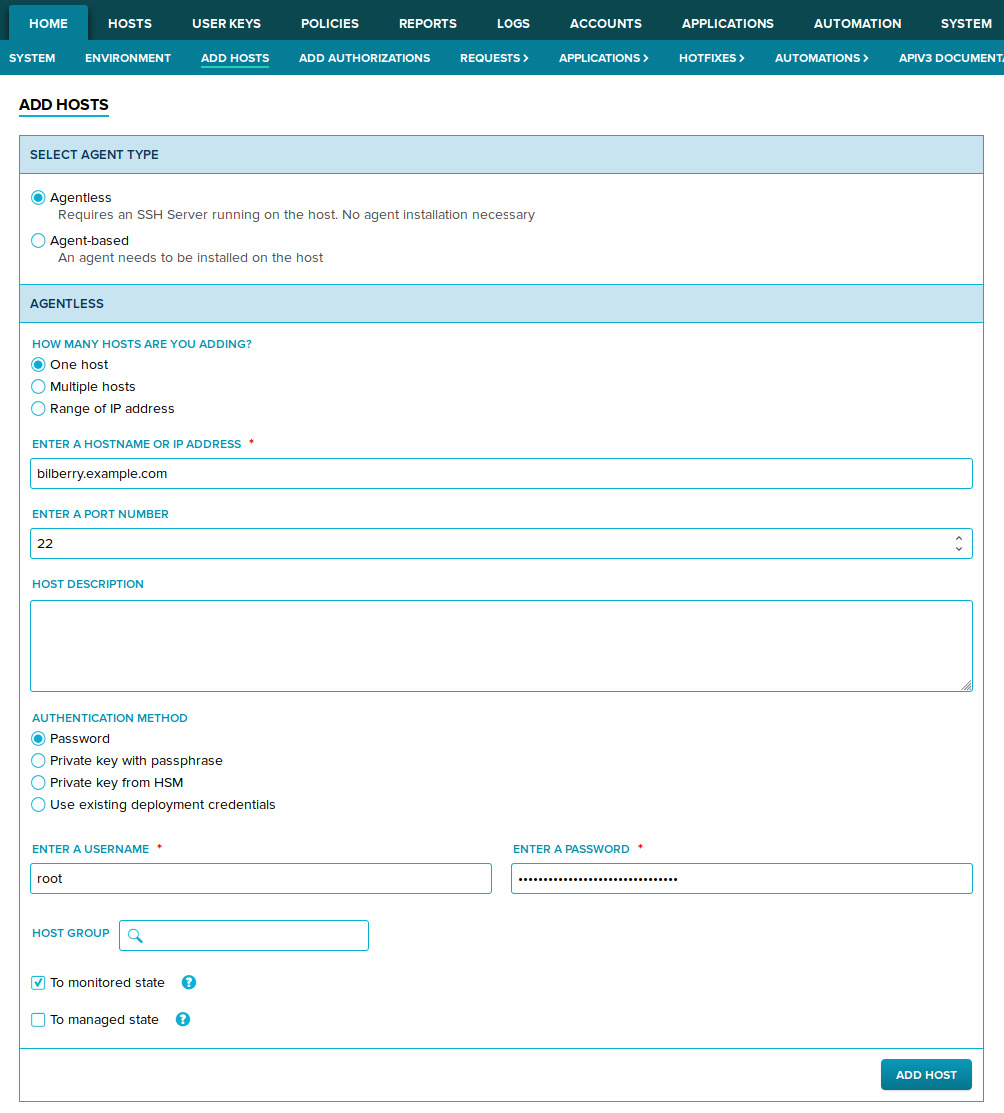
Under the Select agent type section, select agentless. Then under the Agentless section select the One host option. Provide the following information about the host you are adding:
- Host address in either FQDN or IP format (such as server.example.com, or 192.0.2.1).
- The SSH server port on the host (default SSH port is 22)
- User name for a privileged user account (such as
root). - Password for the account you provided. Make sure Authentication method is set to Password.
-
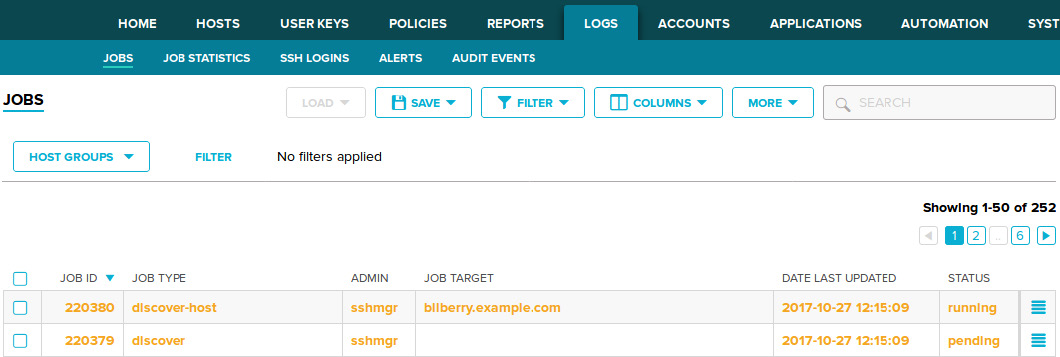
Click Add Host to proceed. Host deployment progress can be viewed on the Logs→Jobs page (you are automatically redirected here after confirming host deployment).
-
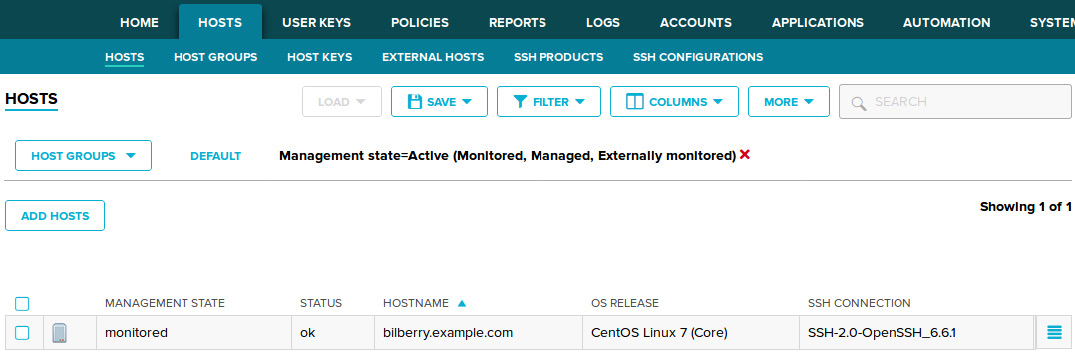
After the jobs finish, verify host deployment on the Hosts page. The host should be visible in the host list. Also, the Management state of the host should be monitored.
You can add additional hosts by repeating the steps in this section.