Adding Authorizations Between Accounts
Authorizations enable users to use public-key authentication to log into accounts, without having to input the account password. After hosts have been added to the managed environment and brought to the managed state, you can add authorizations between the accounts on those hosts.
To create a basic authorization between two accounts:
-
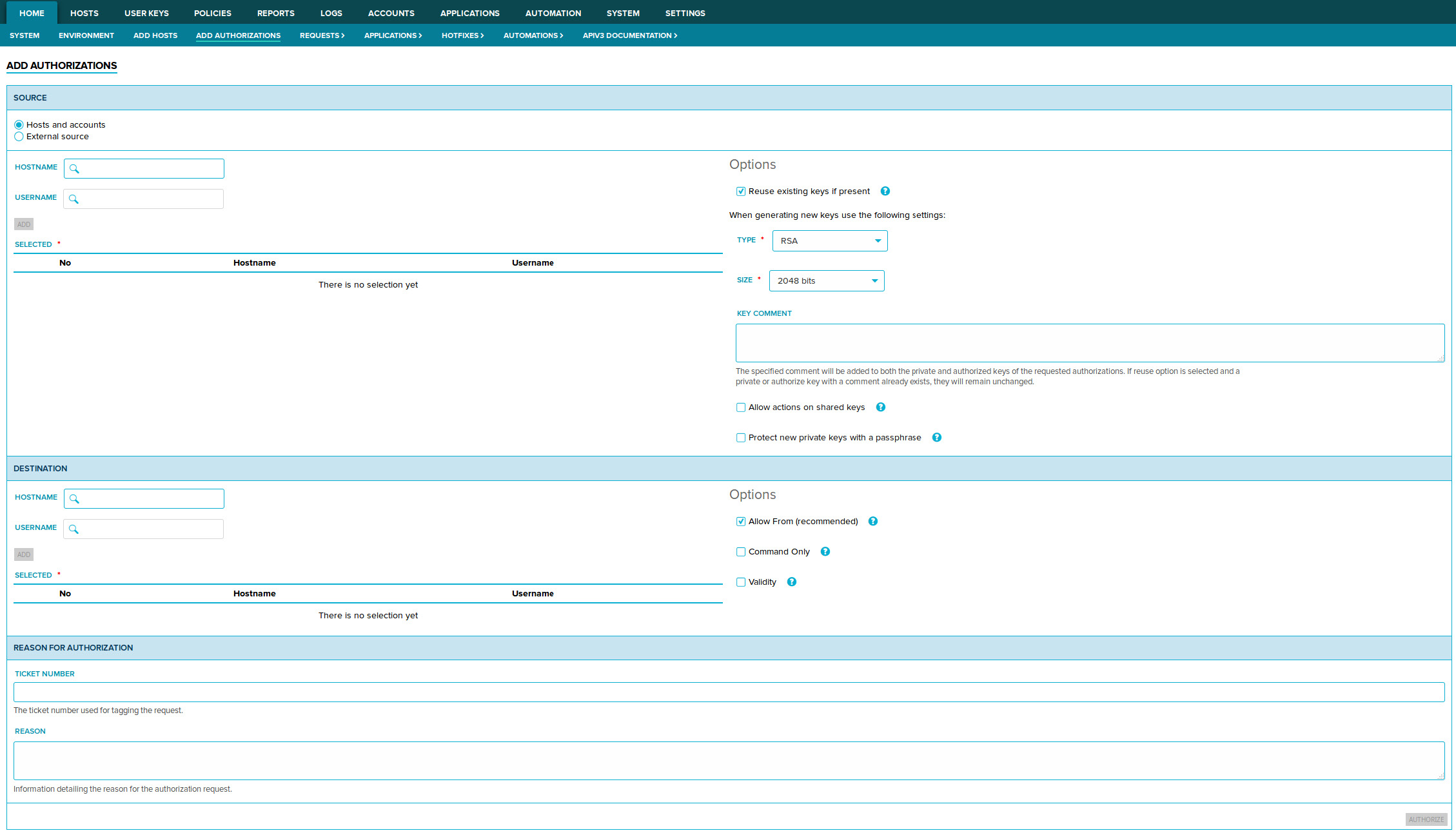
Navigate to the Home→Add Authorizations page.
-
Specify source and destination accounts for the authorizations you want to add. Added authorizations will allow source account users to access destination accounts.
- Add a source account to the Source section: First, specify the name of the host that contains the
account. Second, specify the account user name. Finally, click Add. The account should now be
displayed in the Selected list.
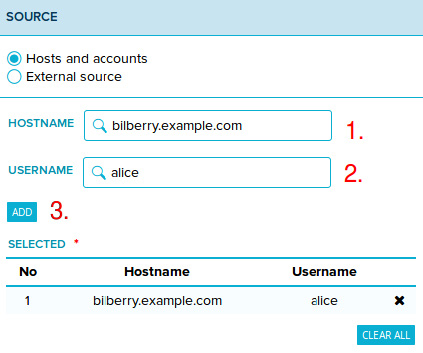
- Destination accounts are added similarly to source accounts. Provide the account information in the Destination section: Specify the name of the host that contains the account, then specify the account user name, and click Add. The account should now be displayed in the Selected list.
- Add a source account to the Source section: First, specify the name of the host that contains the
account. Second, specify the account user name. Finally, click Add. The account should now be
displayed in the Selected list.
-
Check the lists of selected sources and destinations. When adding authorizations via the Key Manager GUI, authorizations are added from every source account to every destination account.
After the source and destination accounts have been specified, click Authorize at the bottom right of the page. You will be automatically redirected to the User keys→Requests page where you can see the progress of the authorization request.
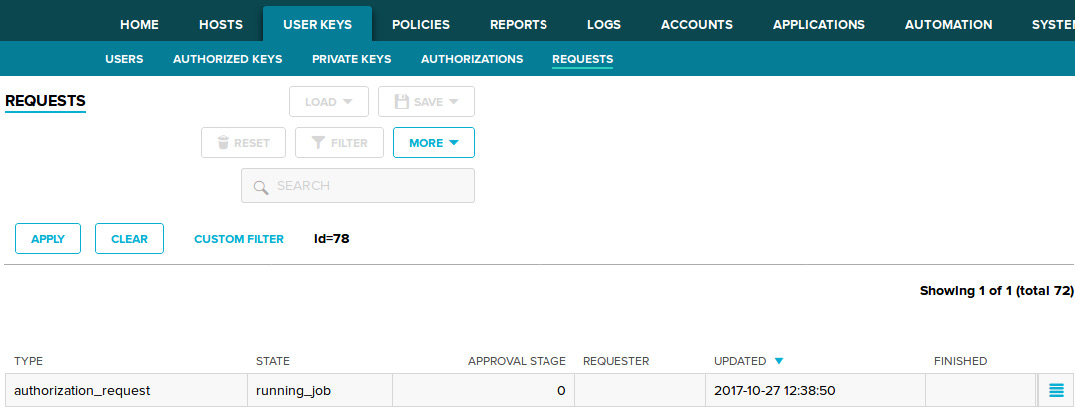 Refresh the page occasionally. Once the request state becomes completed, your new authorizations are
ready for use.
Refresh the page occasionally. Once the request state becomes completed, your new authorizations are
ready for use.You can verify that the authorizations were added (and detected) by Key Manager from the User keys→Authorizations page.
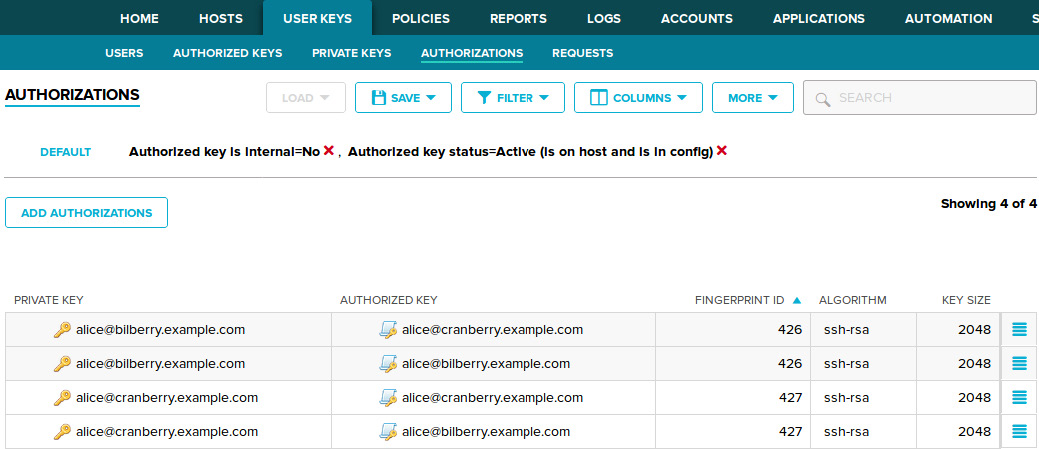
You have now performed all the operations required to set up an authorization. The source account users should now be able to access the destination accounts (without passwords) using SSH public-key authentication.
You can test that the added authorization works by logging into one of the source accounts, then by logging into a destination account using ssh (replace destinationaccount and destinationhost with the user name of the destination account and the address of the destination host respectively):
$ ssh destinationaccount@destinationhostFull example:
$ ssh alice@cranberry.example.comAfter performing the above command, you may be prompted to accept the host key of the destination host. If so, answer
yes. You should then be logged into the destination host with the destination account, without having to provide a password.