Working with Lists
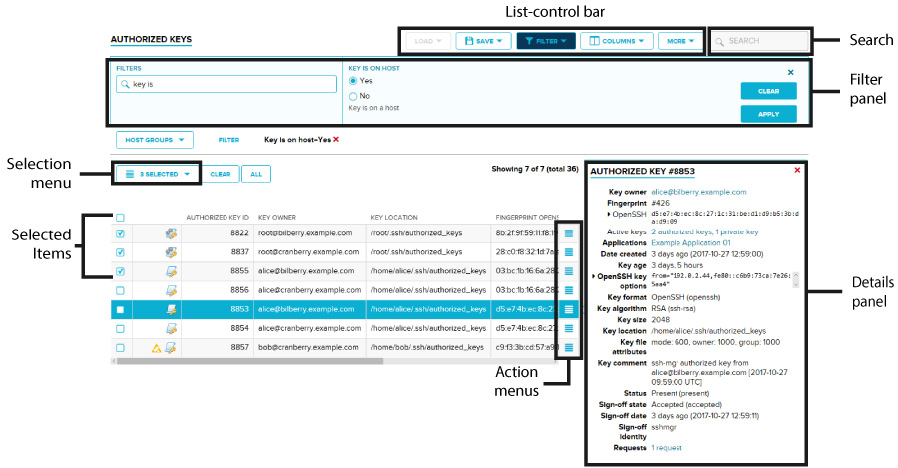
Figure 3.2. Breakdown of important list-view elements
Information about the managed environment is presented as lists on various pages throughout the GUI. List entries correspond to distinct items in the managed environment.
In most list views, you can perform the following:
Find the data you need using filters and search
You may use filters to display only those entries that match to specified filter criteria.
To set new filters, first display the filter panel by clicking Filter in the list-control bar, then specify the desired filters in the filter panel. For more detailed instructions about using filters, see Using Filters. Working examples about filter usage are also provided in Reviewing and Managing Items.
You can quickly specify filters in free text by using Search, located on the submenu bar. For instructions about using search, including information about the search syntax, see Using Search.
Organize the displayed information
To select the columns that are displayed in the list view, click Columns in the list-control bar, then set the columns that you want displayed. You can rearrange the list by dragging and dropping the items in Selected columns to their desired sort order.
Clicking a column label in the list header sorts the displayed items by the values in that column. The sort order is reversed by clicking on the column again.
List data can also be displayed in bar-chart view. The view type is changed from the list-control bar. Note that when using bar-chart view, you will also need to specify a Breakdown category.
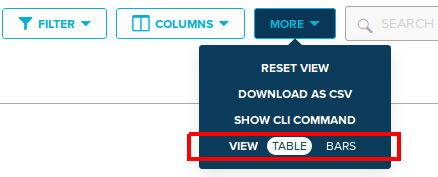
Figure 3.3. Toggling the view type
Perform actions on a single item
To perform an action on a single item in the list, click the action menu  on the same line as the
target item. Doing so displays all the actions available for the target item. Selecting an action displays
the action dialog, where you can specify additional options for the action and confirm the action.
on the same line as the
target item. Doing so displays all the actions available for the target item. Selecting an action displays
the action dialog, where you can specify additional options for the action and confirm the action.
For a working example about performing actions on list items, see Reviewing and Managing Items.
Perform actions on multiple items at once
To perform an action for one or more items, use the check boxes to select the items that you want to perform an action on. Doing so displays the selection menu. Then in the selection menu, select the action you want to perform.
Any batch actions are only performed on those selected items for which it is applicable. For example, if you select multiple hosts from your managed environment, and use the selection menu to perform a Manage action on them, the action is only performed on those selected hosts that can currently be switched to the managed state.
For a working example about performing actions on list items, see Reviewing and Managing Items.
Get details for an individual item
By clicking on an item (not its checkbox, nor its action menu), you will bring up a details panel that provides additional information about the item. Clicking the item again hides the details panel.
For a working example about displaying the details panel of a listed item, see Reviewing and Managing Items.
Get the command-line client command for listing the displayed items
On any Key Manager GUI page that lists items, click Show CLI Command in the list-control bar to display the command-line client command that is used for listing the currently-displayed items. The command reflects the currently-applied filters and column selections on the page, and can be used for familiarizing with command-line client usage. The command can also be adapted into automated scripts that use command-line client commands.
See additional list items
List entries are paginated when the list contains a significant amount of entries. To navigate through additional entries in paginated lists, use the pagination controls located at the top and the bottom of the list view.
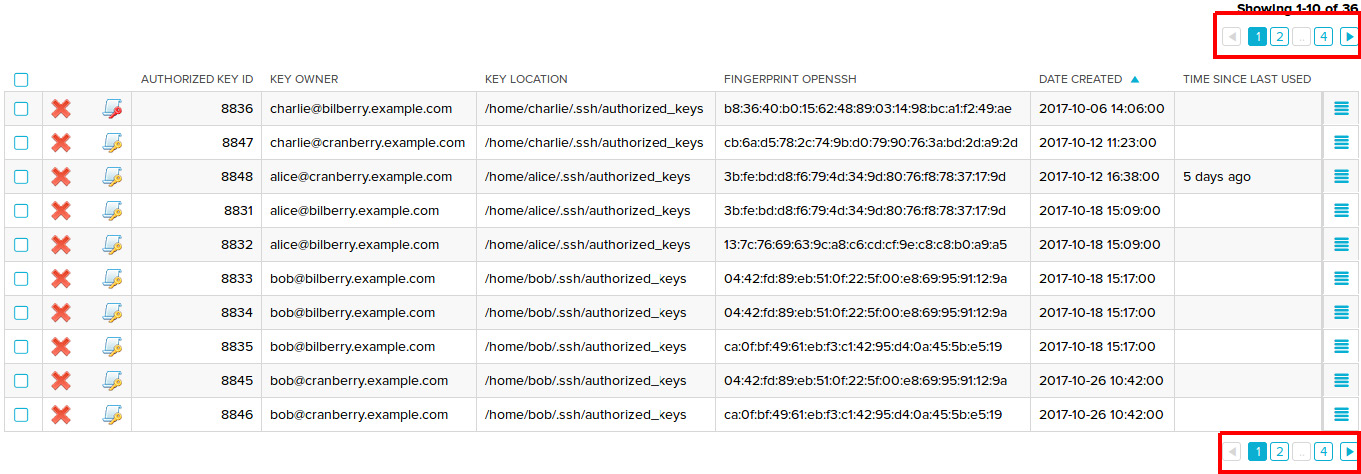
Figure 3.4. Toggling the view type
Download list data as CSV
You can download list data as a Comma-Separated Values (CSV) file. To do this, click Download as CSV on the list-control bar.
Your current filters (including filters applied using Search) apply to CSVs. Items that are hidden by filters are not included in the CSV file.