Using Search
You can use Search (located on the submenu bar) to display only those elements that match to the specified criteria. Search can be used to build complex queries that might not be available via Add Filter.
To search by a single column and value, use the following syntax:
columnname=value
For some numerical columns, you can also search for items with a value greater than or less than a specified value:
columnname>value
columnname>=value
columnname<value
columnname<=value
To search by multiple columns, use && between column-value pairs:
onecolumn=value1&&anothercolumn=value2
If a value contains spaces, the value must be surrounded by quotes (').
column='value with spaces'
You can use the * wildcard to substitute for any string. The * wildcard can be placed in the beginning and/or the end of a value:
column=value*
column=*value
When using wildcards with string values that contain spaces, place the wildcard character outside the quotes:
column=*'value with spaces'*
You can also specify multiple values for a column by placing the values in brackets:
column=[value1,value2]
Wildcards are not supported if you specify multiple values for a column. For example, ip=[10*, 198*] is not a valid search.
The search syntax is identical to the filter-criteria syntax used in the Key Manager command-line client. For additional information and examples about the correct syntax, see Filtering (F, --filter).
The names of the available columns differ depending on the list you are searching from. For a list of the available columns, type help into the Search. Typically, the available search columns are similar to the columns that can be used for filtering corresponding elements via the Key Manager command-line client. For details about the available columns, refer to the documentation about corresponding list commands in Command Line Use.
Applying a filter via Search temporarily clears your existing filters. You can restore your previous filters by removing the search filter.
Search Examples
This section provides examples about Search.
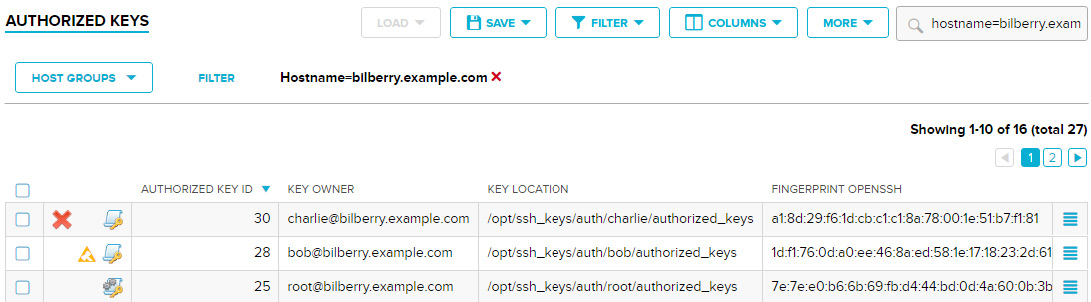
You can search by the value of a single column. For example, to find all the authorized keys on a certain host, provide a search like the following on the User keys→Authorized keys page:
hostname=bilberry.example.com
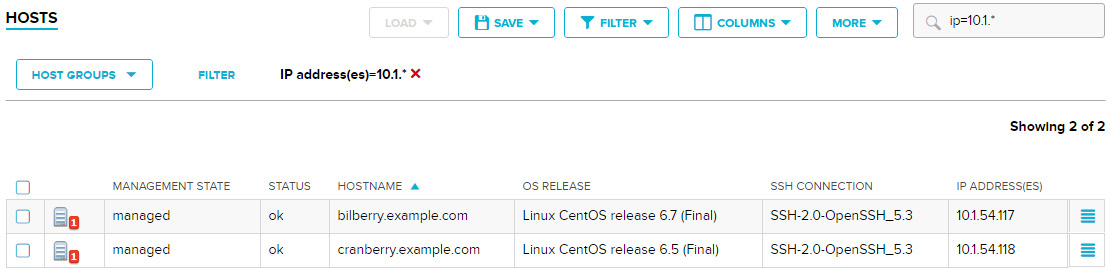
As another example, To find all the hosts, the IP of which starts with 10.1, provide a search like the following on the Hosts page:
ip=10.1*
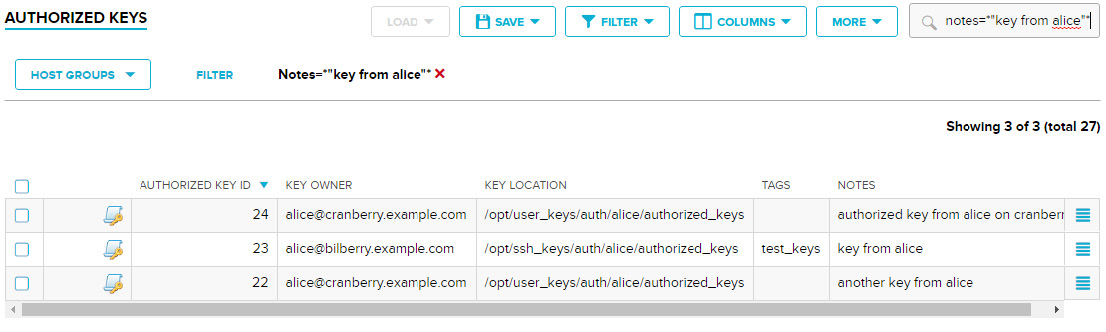
Note that values with spaces must be enclosed in quotes. For example, to find the authorized keys, the notes of which contain a certain string, perform the following search on the User keys→Authorized keys page:
notes=*"key from alice"*
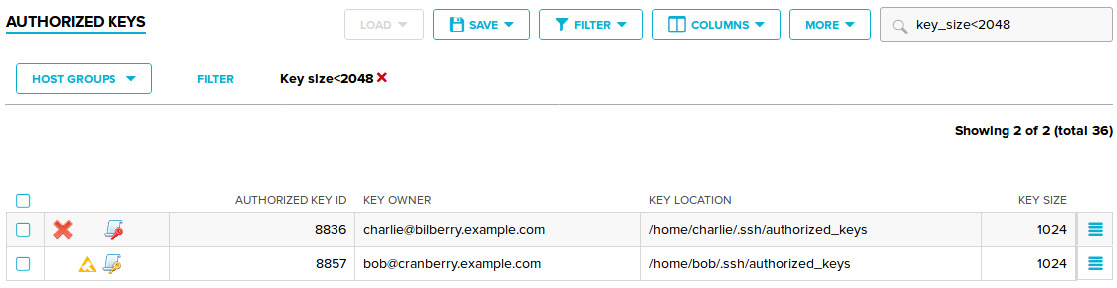
Most numerical fields can also be filtered using relative values (instead of just absolute values). For example, to find all the authorized keys that are shorter than 2048 bits, use the following search criteria on the User keys→Authorized keys page:
key_size<2048
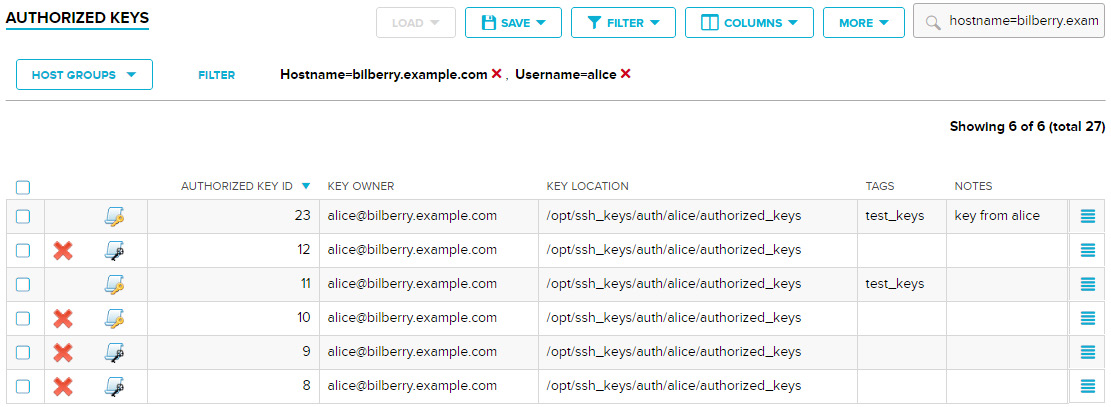
Searching by just one column may sometimes return a lot of irrelevant elements. In such cases, you can search by multiple columns to narrow down your search results. For example, to find all the authorized keys that belong to hosts in a certain domain, and that are furthermore owned by a certain user, provide a search like the following on the User keys→Authorized keys page:
hostname=bilberry.example.com&&username=alice
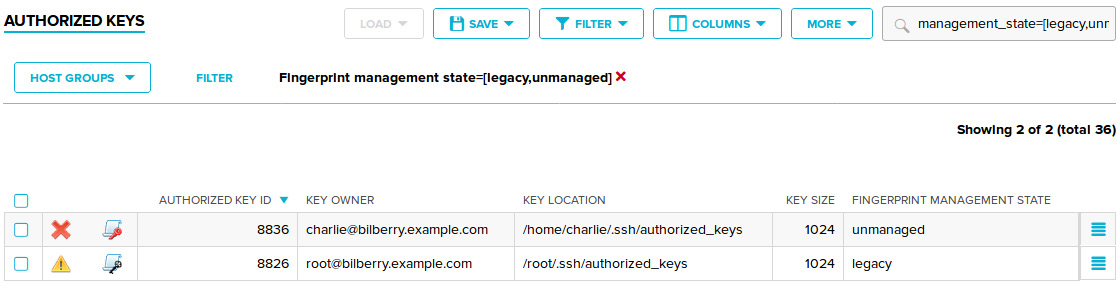
You can also search for elements that have one of multiple values in a column. For example, you can find all the authorized keys that are not in the managed state by searching for keys that have a management state other than managed. This can be accomplished with the following search on the User keys→Authorized keys page:
management_state=[legacy,unmanaged]
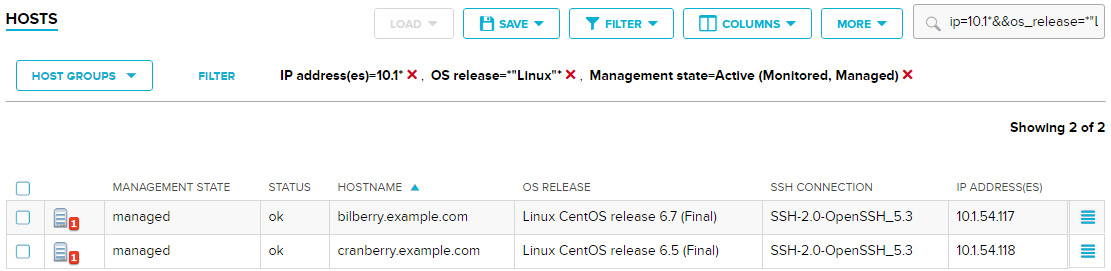
Various search blocks can be combined for more complex searches, as illustrated by the following search that can be performed on the Hosts page:
ip=10.1*&&os_release=*"Linux"*&&state=[monitored,managed]