Using Filters
When you apply filters to a list, that list will only display the items that match to your current filters. In large managed environments, filters may be used to hide irrelevant items to help you find important entries more quickly. Filters can also be used to omit items from downloaded CSVs.
Setting Filters
Filters specify conditions that a list item must meet for it to be displayed on the list. Currently applied filters (if any are applied) are displayed on the list control bar. An item must match all applied filters for it to be displayed on the list.
To add or modify filters, first click Filter to display the filter panel (if it is not displayed already):
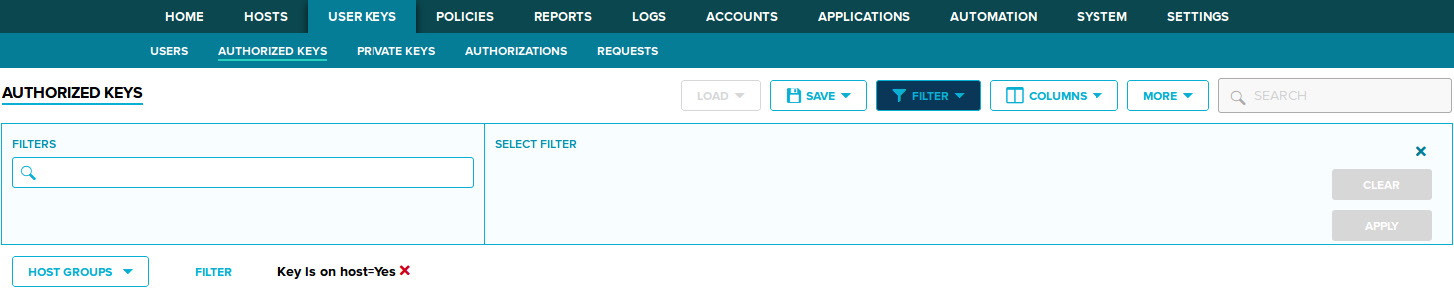
When specifying free-text filter criteria, you can use the * wildcard in the beginning and/or the end of the text to substitute for any string value. For example:
*example.com
When specifying a free-text filter criteria that contains special characters and/or spaces, surround the text with double quotes. Also, when using quotes and wildcards, specify the wildcards outside the quotes. For example:
*"Release (Final)"
When filtering by numerical fields, you can choose to filter for a specified value, or for values relative to the specified value. You can toggle the match mode between = (equal to the value), < (smaller than the value), > (greater than the value), <= (smaller than or equal to the value), and >= (greater than or equal to the value) in the filter panel.
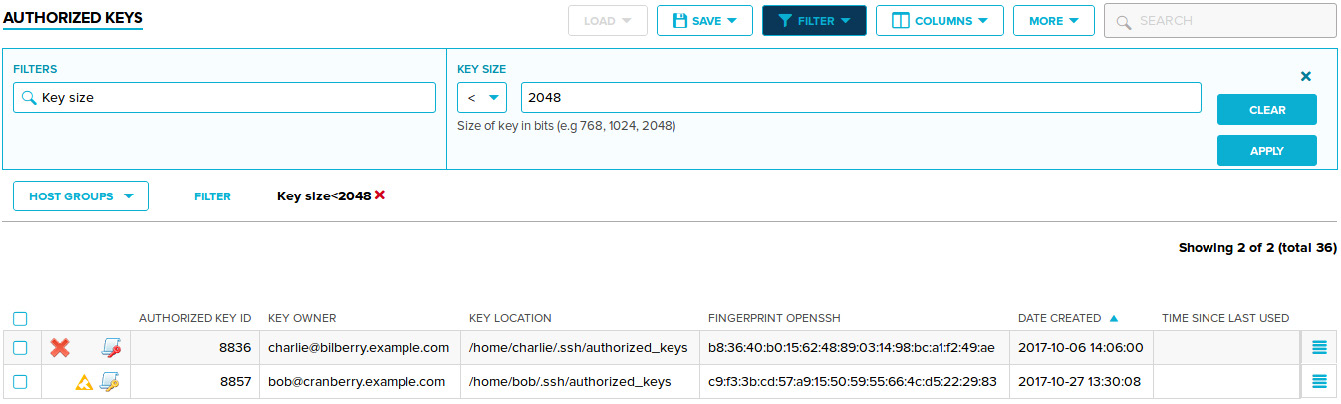
When filtering by date values, you can filter using relative time ranges (such as last 24 hours, or the current month). You can also filter for entries before or after a given time.

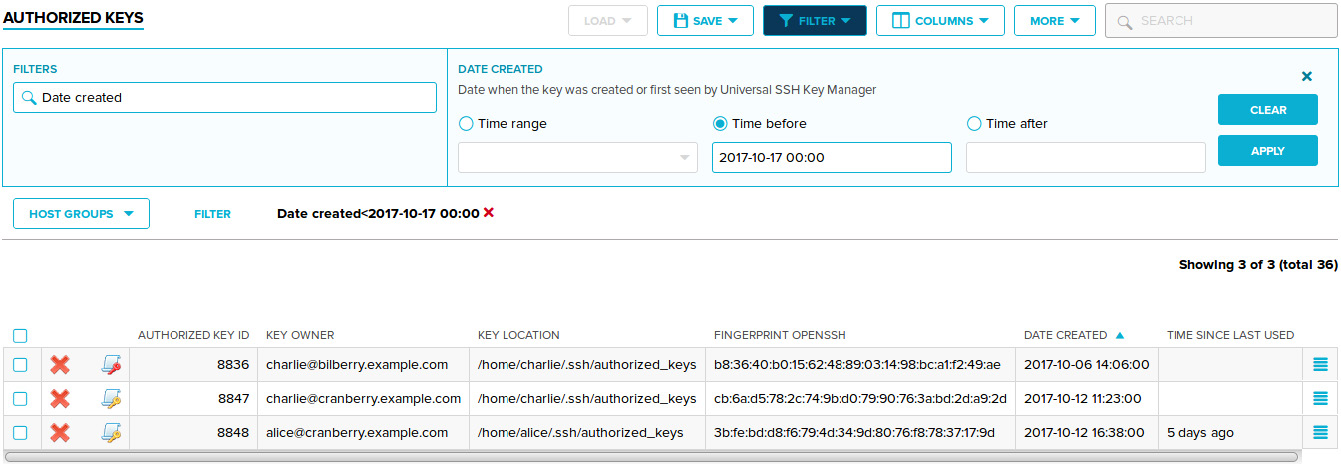
Existing filters are displayed below the filter panel. Existing filters can be removed by clicking ✖ next to the corresponding filter.
Filter settings are preserved between sessions (navigating away from a page or logging off does not erase filters). To reset the filters for the current list, click Reset on the list-control bar. Note that the default filters for some list views are non-empty.
Saving and Loading Filters
You can save filters for later use. To save the currently applied filter. Click Save on the list control bar. Specify a unique name for the filter you want to save, then click Save below the filter name text field.
To load previously-saved filters, first click Load on the list-control bar to display the list of saved filters, then select the filter you want to load. A saved filter can be deleted by clicking ✖ in the list of saved filters.
Filters applied using Search cannot be saved.