Switching a Host to the Managed State
Hosts that are added to the managed environment are initially placed in the monitored state. The monitored state can be regarded as a read-only mode for the host: key management operations (excluding host scanning) are disabled on hosts that are in the monitored state.
To perform key operations such as adding authorizations, you must first switch the host to the managed state.
-
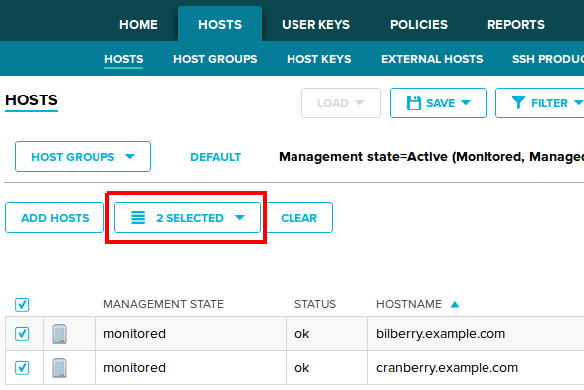
On the Hosts page, select the monitored hosts that you want to switch to the managed state. To select a host, click the check box on the host entry.
-
After you have selected one or more hosts, the selection menu appears above the list.
-
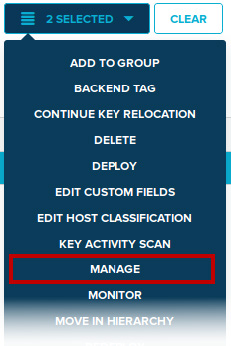
Click the selection menu to display all the actions that can be performed on the selected hosts, then select the Manage action.
-
A dialog appears to describe the action you selected, and to ask you to confirm the operation. Click Confirm to proceed with the operation.

The selected hosts should now be in the managed state, and all the key-management actions are enabled on them. You can confirm this from the host list by checking the Management State of the hosts.
Other host-management actions (available via the action menu and the selection menu) are also performed in a similar manner.