Managing SSH Configurations
This section provides detailed instructions for reviewing and modifying SSH configurations, which define SSH product behavior on their respective hosts. A specific example is provided for modifying an OpenSSH configuration to increase the logging level of the OpenSSH server. Changing the logging level is mandatory if you want to enable key-activity scans on your OpenSSH hosts.
To review and modify a particular SSH configuration belonging to a certain host, perform the following:
-
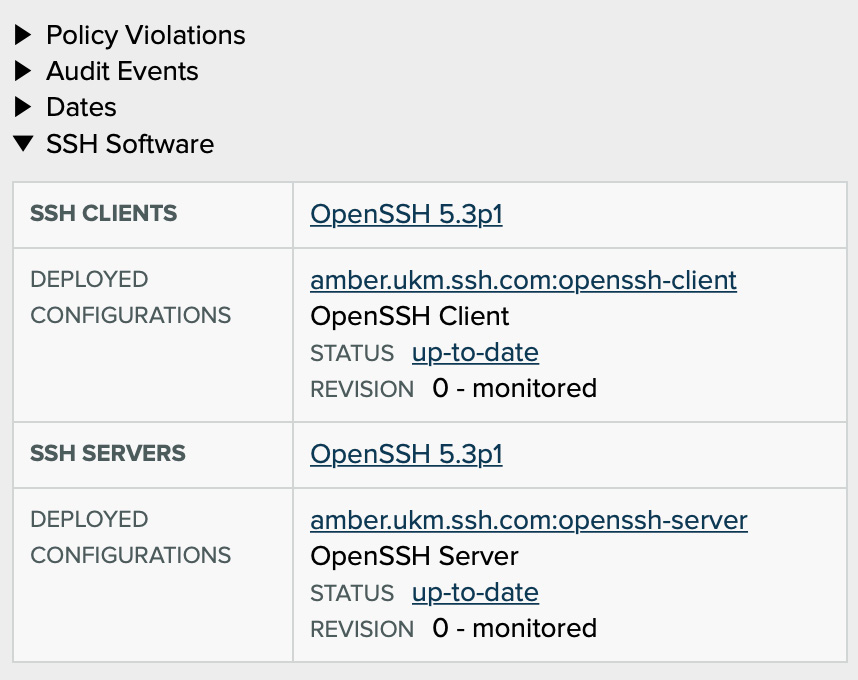
On the Hosts page, click a host entry (not its checkbox) to display its details panel. Then in the details panel, expand SSH software. The SSH configurations for this host are listed in this section.
-
In the details panel, clicking on a configuration redirects you to the Hosts → SSH Configurations page, where you can see the configuration entry. In this example, we choose the OpenSSH server configuration.
-
Make the configuration editable by switching it to the managed state. This is done by performing a Manage action on the configuration. Note that when changing a host to managed state, its configurations are also set to managed state. If you need instructions for performing actions, see Reviewing and Managing Items.
-
When a configuration is moved to the managed state, Key Manager does this by deleting the current configuration entry from the Key Manager Database, and by assigning a new configuration to the host. To display the new, managed version of the configuration, clear the custom filters from the page.
Then click the managed configuration. You can recognize the correct configuration by adding a Date created column from the Columns menu, and ordering the SSH configurations using the Date created column.

-
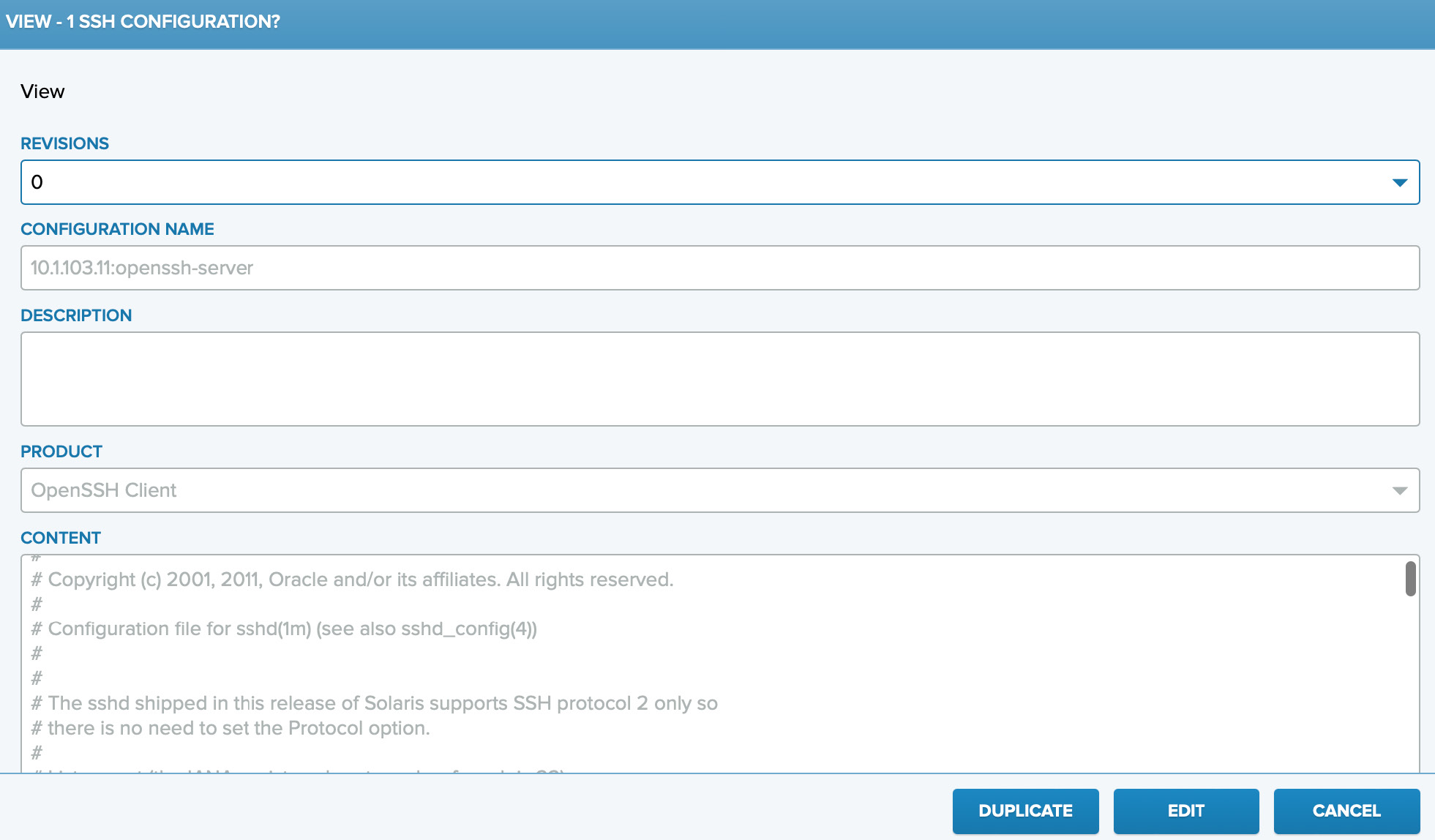
Perform a View action on the configuration. Doing so displays the contents of the configuration file.
-
To edit the configuration-file content, click Edit. After this, make your desired changes under the File content field. For example, to set the logging level of the SSH server, find a line that looks like the following:
#LogLevel INFOAnd change it to this:
LogLevel VERBOSE -
Provide a free-text Description for the configuration, then click Save.
You can confirm that the changes were saved successfully by looking at the Date created column, or the Revision of the configuration.

-
After a configuration is modified, the new revision is only saved to the Key Manager Database. To update the configuration on the hosts, you must first Assign the configuration to the hosts, and then Deploy the configuration. These are done as follows:
a. On the Hosts→SSH Configurations page, first perform a Assign action to assign the configuration to the hosts.
b. Then perform a Deploy action on the modified configuration.
In this example, we want to deploy the configuration that we modified previously in Managing SSH Configurations. You can recognize the configuration by using the Date created column, or the Management state (managed), and the Revision (1).
Once the Deploy action is confirmed, Key Manager launches jobs to deploy the updated configuration to hosts. After the jobs finish successfully, the updated configuration has been successfully deployed and taken into use on the hosts.
You can check the
conf-deployjob progress and status from the Logs→Jobs page.
Repeat the steps in Managing SSH Configurations and this section to set the configurations for your other test hosts.