Managing Authorized-Key Options
This section describes an example for setting and testing authorized-key options. In particular, this example shows how to set allow-from restrictions to allow or deny usage of an authorization from specified locations.
-
Ensure that the authorizations work by using SSH to log in from the source account to the destination account.
In the example run, we use the authorization from alice@bilberry.com to alice@cranberry.com. We test the authorization by logging into the destination account using SSH, by running the following command from the source account:
$ ssh alice@cranberry.comLog out to return to the source account after you have tested the authorization:
$ exitYou may be asked to accept the destination host key. If so, input yes. After this you should be logged in as the destination user, without having to input the password.
-
Back on the User keys→Authorizations page, perform a Set Options action on the authorized keys tested previously.
You can observe that authorizations created using Key Manager default options are automatically given Allow-From options. By default, the options are set so that authorizations can only be used from the hosts to which the source accounts belong to.
-
To quickly test setting authorized-key options via Key Manager, we disable access from the source account. This can be done as follows:
a. Select the Set options mode.
b. In the Options section, specify a
fromstanza that denies the host address of the source account. In this example, we achieve this by simply copy-pasting the from stanza listed under Current options and add a!in front of the address.For example, if the Current options looks like the following:
from="bilberry.example.com"Specify the following options in the Options field:
from="!bilberry.example.com"Click OK to confirm. The options you specified should now appear in the Set these options and remove others field.
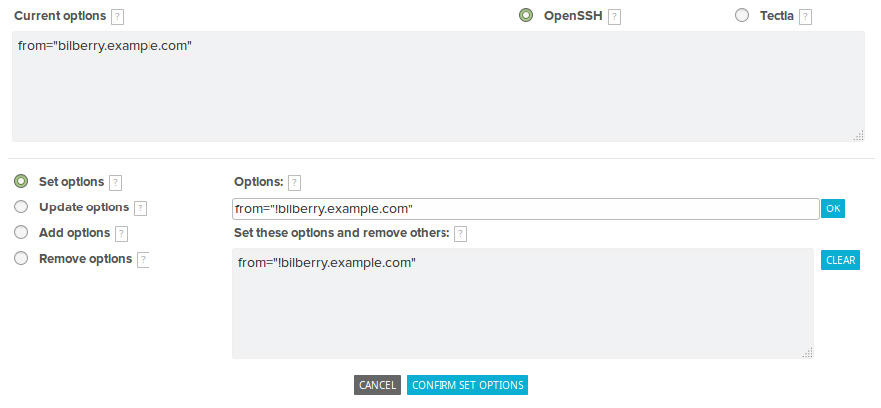
c. Confirm the new options. Key Manager starts a
set-authorized-key-optionsjob to modify the options of the authorized key. The new authorized-key options come in effect once the job finishes successfully.d. Once again, use SSH to log in from the source account to the destination account (similarly as in step 2). Since we denied the source address, the authorization should no longer work using public- key authentication (you will be prompted for a password).
-
Optional: Re-enable SSH logins from the source account by setting the former authorized-key options of the authorized-key.