Key-Information Icons
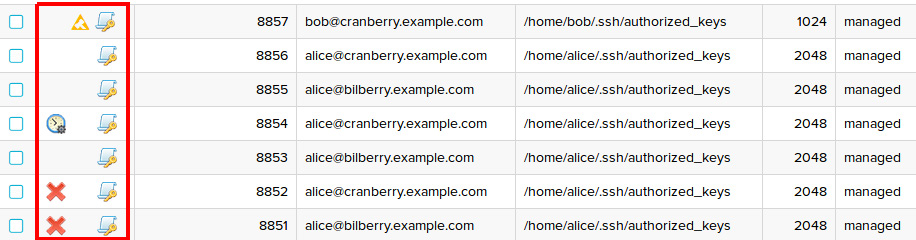
Figure 9.1. Key icons displayed in key lists
In the Key Manager GUI, basic information about each key is indicated by the associated icon. The type and the management state of a key is indicated as follows:
-
 Legacy private key: The key was found on a host when the host was in the monitored state. These are usually keys that existed before their host was added to the managed environment.
 -
 Managed private key: The key was added using Key Manager. Alternatively, a Key Manager administrator has approved the key and brought it to the managed state.
 -
 Unmanaged private key: The key was found on a host when the host was in the managed state. These keys may have been added to the host manually. As such, they may provide unauthorized access to your hosts. Unmanaged keys should be reviewed carefully, and handled accordingly.
 -


 Authorized key: Authorized keys are indicated by the scroll icon behind the key icon. The key icon represents the management state of the authorized key, similarly to the icons used for private keys.
 -


 Host key: Host keys are indicated by the server icon behind the key icon. The key icon represents the management state of the host key, similarly to the icons used for private keys.
 -
 Management key: Authorized keys with this icon enable Key Manager to connect to agentless hosts, for the purposes of performing management actions.
Icons may include additional modifiers that provide more information about the key:
-
 Passphrase-protected key: A lock next to the key icon indicates that the key is passphrase-protected.
 -
 Deleted key: A cross beside the key icon indicates that the key has been removed using Key Manager. Deleted keys can be restored using Key Manager.
 -
 Missing key: A question-mark token beside the key icon indicates that the key is missing. The key may have been removed manually without approval. Missing keys can be restored using Key Manager.
 -
 Appeared key: An exclamation-mark sign beside the key icon indicates that the key has appeared. The key may have been added manually, and may therefore grant unauthorized access. The key should be reviewed.
 -


 Key pending operation: A clock beside the key icon indicates that the key is scheduled for a pending operation. The exact pending operation is indicated by the graphic at the lower-right corner of the clock. A red cross graphic over the upper-left corner of the icon indicates that the last management action for this key failed to execute properly. You can get a description of the pending operation by hovering your cursor over the clock icon, or by reviewing the details panel of the key.
 -


 Blacklisted private key: A black circle with a white cross inside it over the key symbol indicates that the private key has been blacklisted.
 -


 Blacklisted authorized key: A black circle with a white cross inside it over the authorized key symbol indicates that the authorized key has been blacklisted.
For more information about key states, statuses, and pending operations, see Key Manager Management States, Key Statuses and User States.