Example – Adding an Agentless Host that Uses Privilege Elevation
This section provides an example about deploying a host that uses privilege-elevation software.
In the example scenario, we deploy a host that uses pmrun (Privilege Manager for Unix) for privilege elevation. The management account designated for this host is non-privileged, and corporate policy requires that privilege elevation is handled using the Privilege Manager for Unix privilege-elevation command pmrun.
Privilege-elevation settings for this host must be configured in Key Manager. We recommend configuring privilege-elevation settings via Key Manager host groups. This method allows you to flexibly configure privilege-elevation settings for the hosts that require them.
Adding hosts with privilege-elevation generally involves the following steps:
-
Create a host group for hosts that use privilege elevation.
-
Configure the host group with privilege-elevation credentials.
-
Deploy the hosts that use privilege elevation directly to the configured host group.
More-detailed example steps as follows:
-
Before adding hosts that use privilege elevation, configure the necessary privilege-elevation settings via Key Manager host groups. This only needs to be done once for all hosts that use identical privilege-elevation credentials and privilege-elevation software. Hosts that use identical privilege-elevation credentials and software can be added to the same host group.
In the Key Manager GUI, on the Hosts→Groups page, create a new host group for hosts that use privilege elevation.
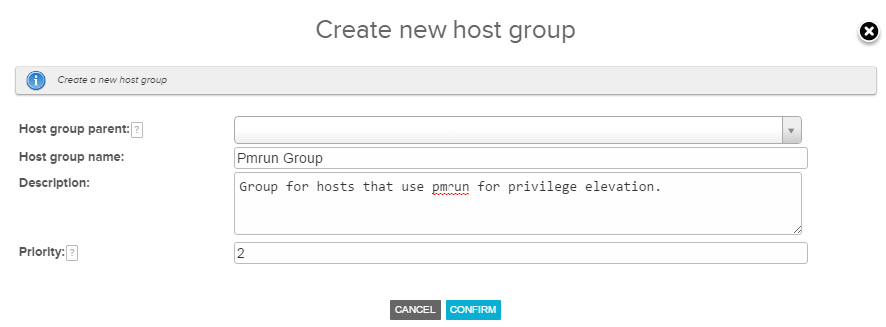
Note that you must specify a non-blank non-zero Priority for the host-group hierarchy before you can set privilege-elevation settings for it. If you are creating a top-level host group, set the priority for this host group. Otherwise, ensure that the top-level host group for this host group has a priority value set.
-
Add privilege-elevation settings to the host group. These privilege-elevation settings shall be used by the hosts that are later added to this group.
To add privilege-elevation settings to the host group, perform a Settings action on the host group. Doing so displays the settings page for the host group, where you can add privilege-elevation settings for the host group.
-
In the settings page, add the privilege-elevation settings for the host group. This is done by selecting Elevate command under the Add setting section. After that, specify the privilege-elevation settings as follows:
-
Label (optional): A free-text label for identifying this setting. A label is generated automatically if it is left unspecified. Note that any values entered in the Username and Password fields is hidden after the settings are applied. If you want to retain any of this information, it can be added to the label.
-
Username: The name of the account that is being elevated to, such as
root. -
Password: Password used for privilege elevation.
-
Elevate command: The command used for gaining root-shell access on the host, such as
/opt/quest/bin/pmrun /bin/sh -
Password prompt (optional): A string matching the end of the privilege-elevation password prompt. Leave this field empty if no password is required for privilege elevation.
For example, if the privilege-elevation command prompts for the privilege-elevation password with a message like the following:
********************************************************************** Quest Privilege Manager for Unix Version 6.0.0 (027) ************************************************************************ You are required to authenticate as the user:"management_user"before running this commandPassword:You can specify the password prompt as:
Password: -
Expected response (optional): A string matching the beginning of the message that is displayed by the privilege-elevation command after successful privilege elevation. Leave this field empty if no password is required for privilege elevation.
You should not include the shell prompt in the Expected response. If the elevate command produces no output beside the shell prompt, leave this field empty.
For example, if the privilege-elevation command outputs the following after successful privilege elevation:
Request granted for user "management_user"You can specify the expected response as:
Request granted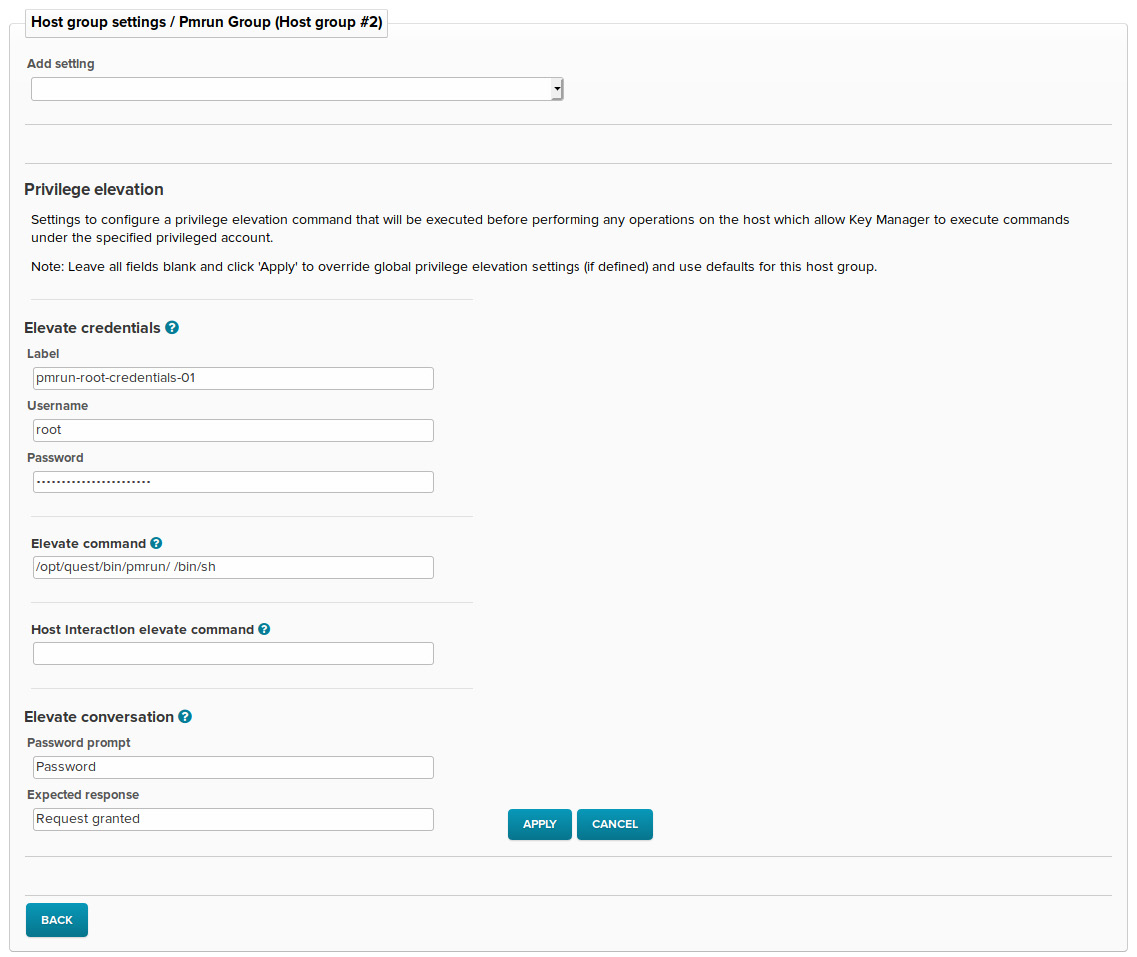
-
If you need help configuring privilege-elevation settings for the hosts in your environment, please contact SSH Communications Security Corporation support at https://support.ssh.com/.
-
Click Apply to save the privilege-elevation settings for the host group.
You have now configured a host group for hosts that use the previously-specified privilege-elevation settings. Be sure to deploy all the hosts that use these privilege-elevation settings to this host group.
-
To add the target host using agentless connections, navigate to the Hosts page and click Add Hosts.
-
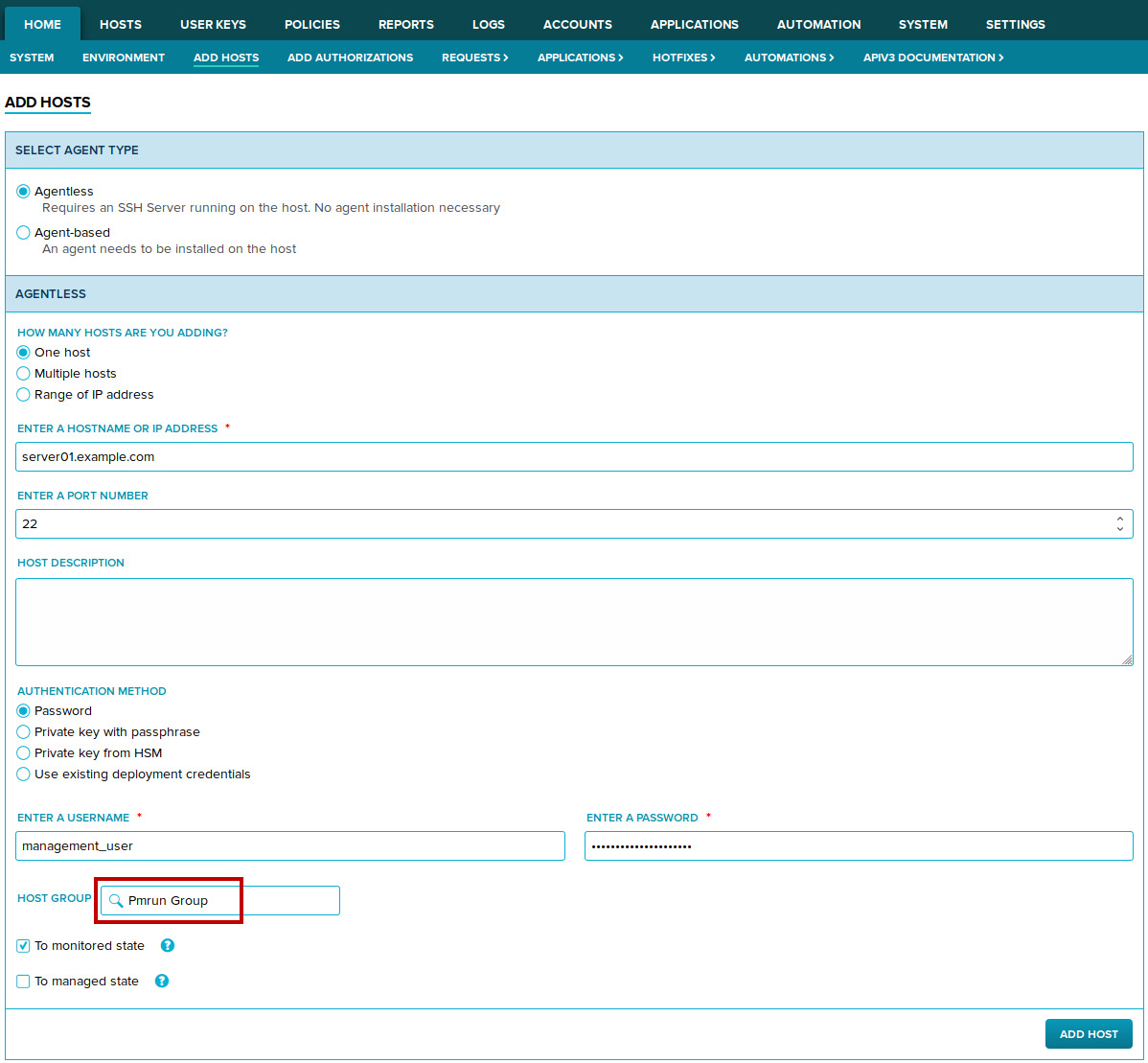
On the agentless host-deployment page, provide the information required for adding the host. It is important that you add the host directly to the host group where privilege-elevation settings are configured. This is done by selecting the correct host group in the Host group section.
-
Click Add Host to add the host. The host is added to the managed environment after the initial host-discovery jobs finish successfully.