Automation Examples
This section presents examples of creating automation rules.
Renewing Keys That Are Older Than Set Time
The following is an example automation rule that renews private keys that are older than six months.
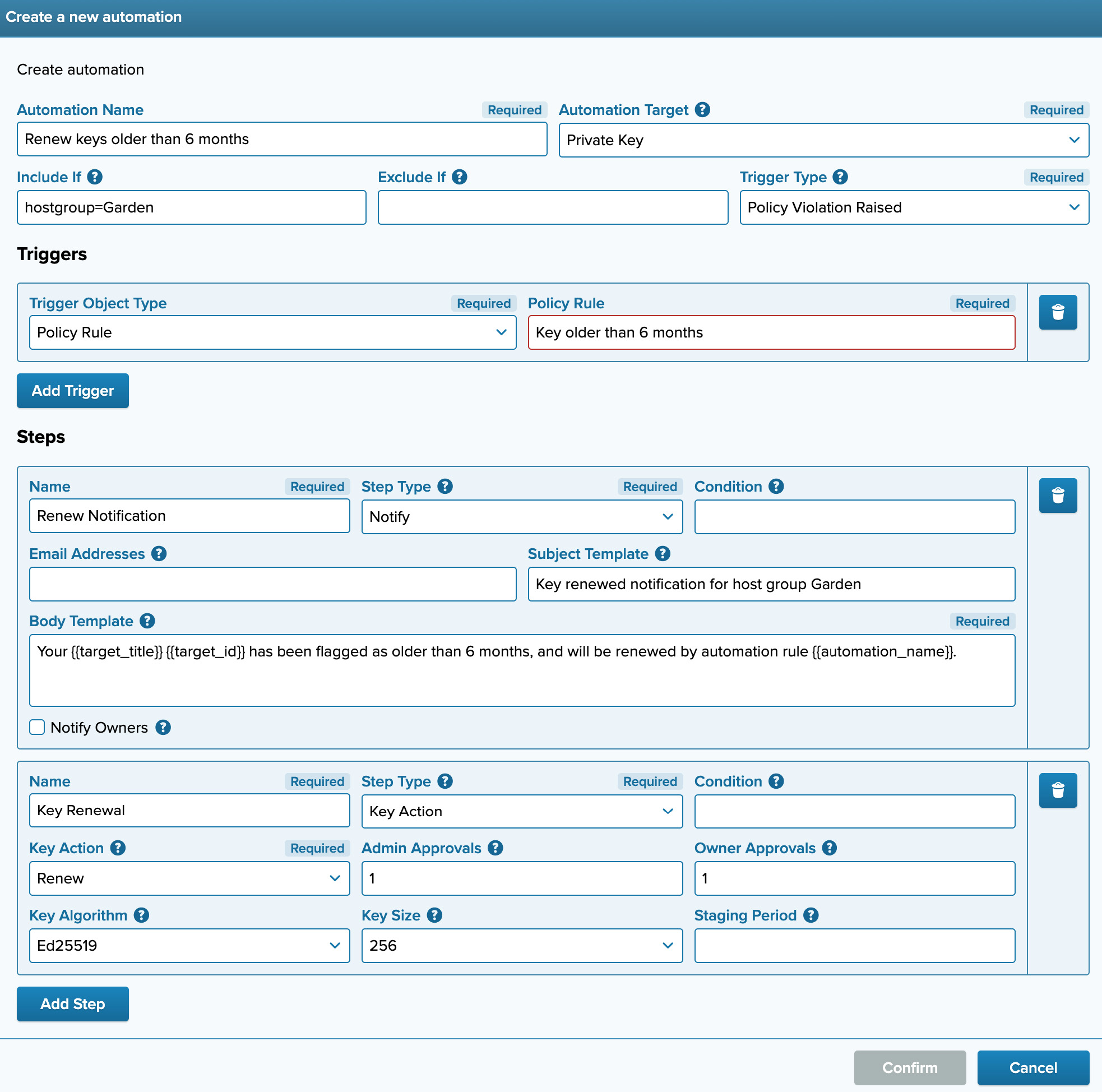
Figure 14.1. Key renewal automation example
This automation rule uses a key age policy that flags keys older than six months as a trigger. The Include if setting limits the automation to run only when the trigger is triggered relating to hosts in host group Garden. Notify step is set to notify the owners and send a the message detailed in the templates. The template uses variables to help pinpoint more information about the automation and target in question.
Automated key renewals can be set with either approvals or a staging period, not both.
Removing Unused Keys Older Than Set Time
The following is an example of an automation used to remove keys that have been unused for over a year.
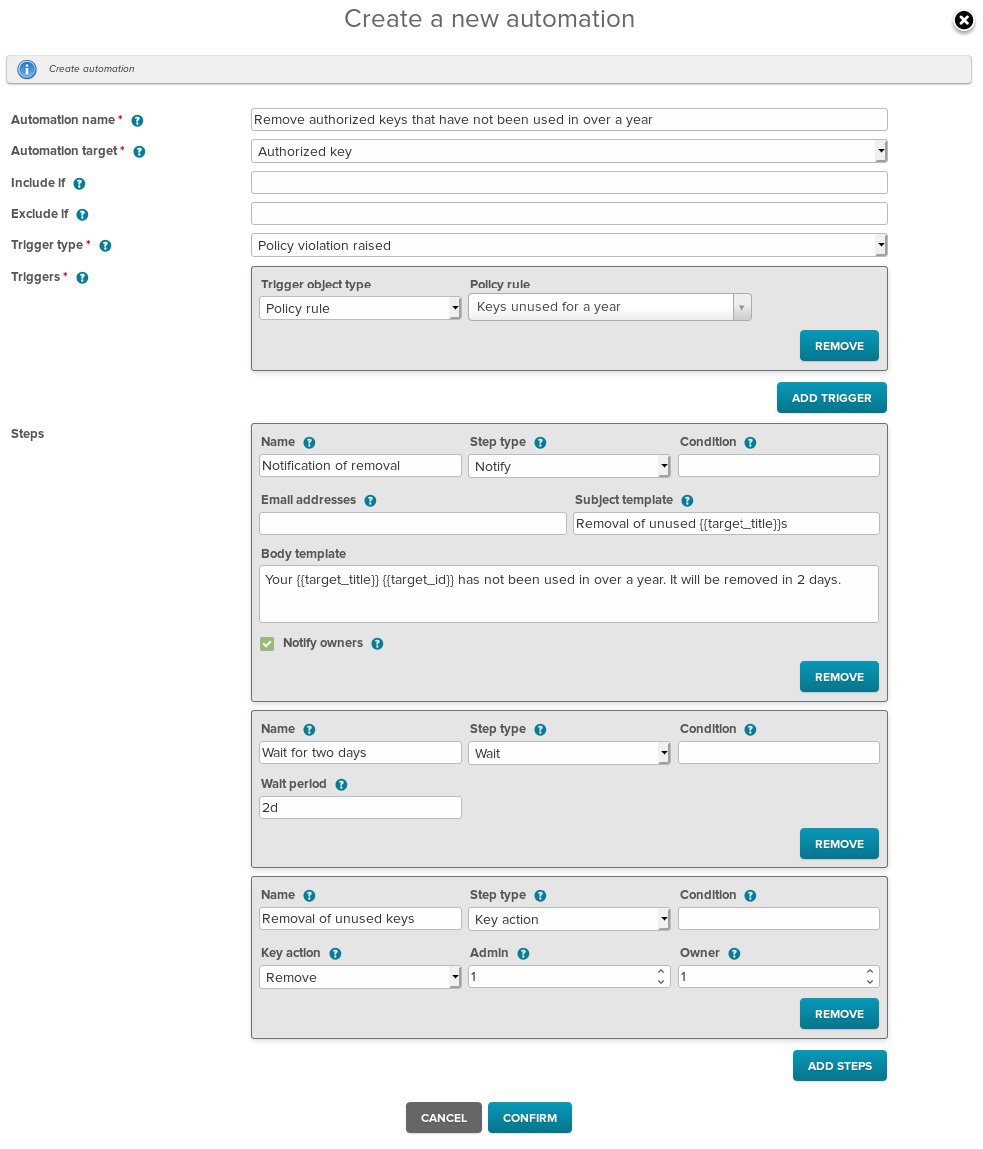
Figure 14.2. Key removal automation example
This automation rule will be triggered by a policy that flags keys older than a year. Since no inclusions or exclusions are made, this automation defaults to covering all authorized keys in the whole environment. The wait step specifies a 2 day wait period, after which it moves on to the next step. Key action step removes the keys with 1 admin and 1 owner approval required.
Key Provisioning to Newly-Discovered Hosts
The following is an example of provisioning a set of keys after host deployment.
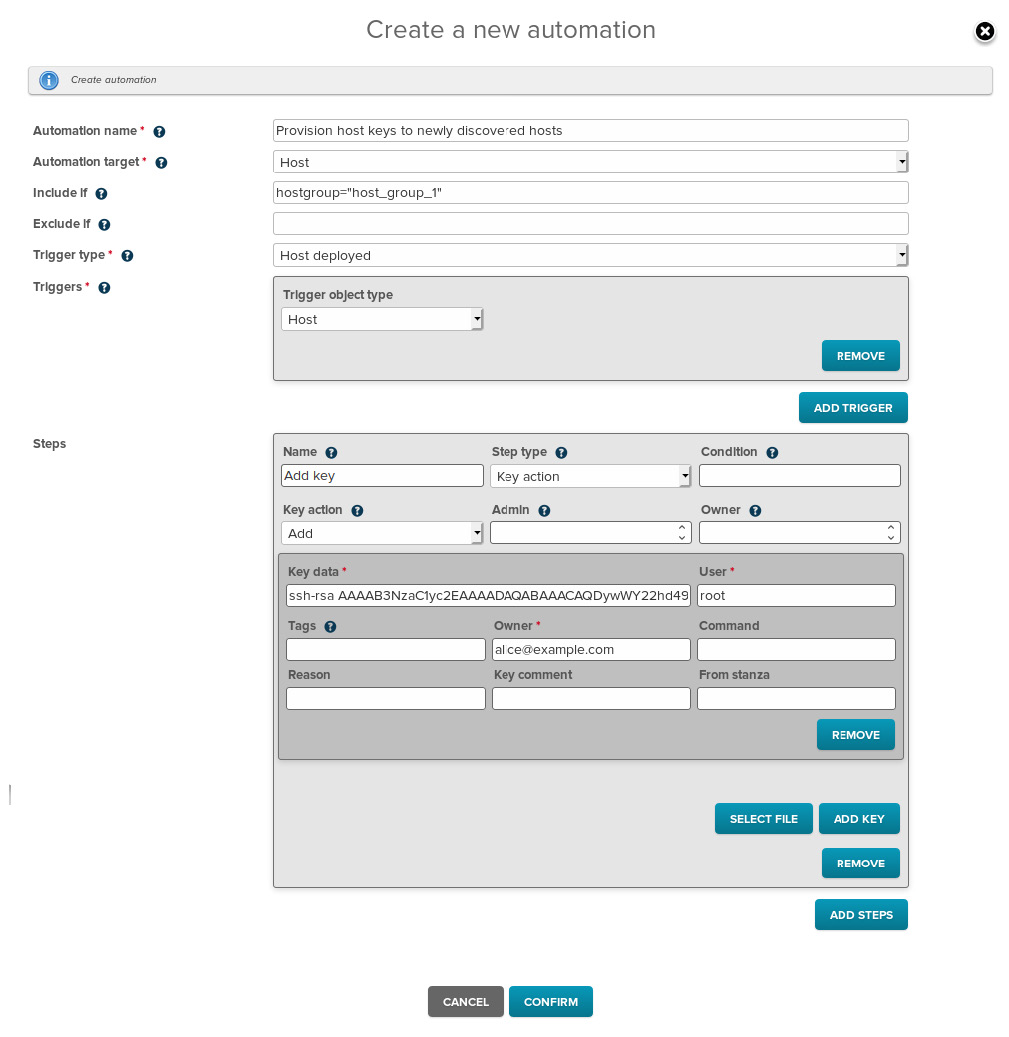
Figure 14.3. Key provisioning automation example
This automation rule will be triggered by a deployed host being discovered. The automation target is set
to type Host, and Include If setting limits the actions to concern hosts deployed to host_group_1. The
step will add a key to the host, and in this case the key is added with the Add Key button, and filling the
Key Data, User, and Owner fields.
You can add lots of keys at once from a CSV file.
The first line of the CSV must specify the headers. Specify the keys to be added on subsequent lines. Example CSV data:
user,from_stanza,key_comment,keydata,owner
root,192.0.2.152,,ssh-rsa AAAAB3...,alice@example.com
maintenance,,maintenance key,ssh-rsa AAAAB3...,bob@example.com
The following headers are mandatory:
keydata
The public key to provision on the target server.
Example: ssh-rsa AAAAB3…
owner
Contact information, typically the email of the owner of the private key for the public key being provisioned.
Example: alice@example.com
user
The user account on the target host. If the user does not exist, the specific authorized key will be skipped.
Example: alice
You may use any of these optional headers to specify additional information:
command
Command restriction for this authorized key.
Example: ”echo foo”
comment
Can be used to describe the purpose of this authorisation. This is recorded within Key Manager for auditing purposes.
Example: ”access form dev clients”
from_stanza
Source restriction(s) for this authorized key.
Example: ”192.0.2.10,192.0.2.11”
key_comment
The key comment to be added to the authorized key. Typically used for describing the purpose of the key.
Example: ”DEV access”
tags
Tags to be added to the key.
Example: initial_provisioning