Adding Authorizations
Authorizations allow users to log in using public-key authentication, a more secure alternative to traditional password authentication.
An authorization is established by a private-key and authorized-key pair. The account with the private key (source account) has access to accounts with the corresponding authorized key (destination accounts).
To add authorizations via the GUI:
-
Navigate to the Home→Add Authorizations page.
-
Specify the source and destination accounts.
Instead of specifying source accounts, you may provide a public key to be authorized to destination accounts. This alternative can be used when source accounts are outside the managed environment.
-
Optional: Specify additional options for the authorizations that are to be created. For example, specify key size, restrict access to certain addresses, and allow only certain commands using the authorizations.
-
After the add-authorization request is approved. Key Manager launches jobs to add the necessary user keys. Public-key access from sources to destinations is available once the jobs finish.
For an example about adding authorizations via the GUI, see Adding Authorizations Between Accounts.
You can also add authorizations via the command-line client:
$ ssh-mgr-client add-authorizations -d \
from=alice@host1,to=[bob,charlie]@host2
For more information about the add-authorizations command, see add-authorizations.
Key Manager adds authorizations from each source account to each destination account - not just between sources and destinations at the same index.
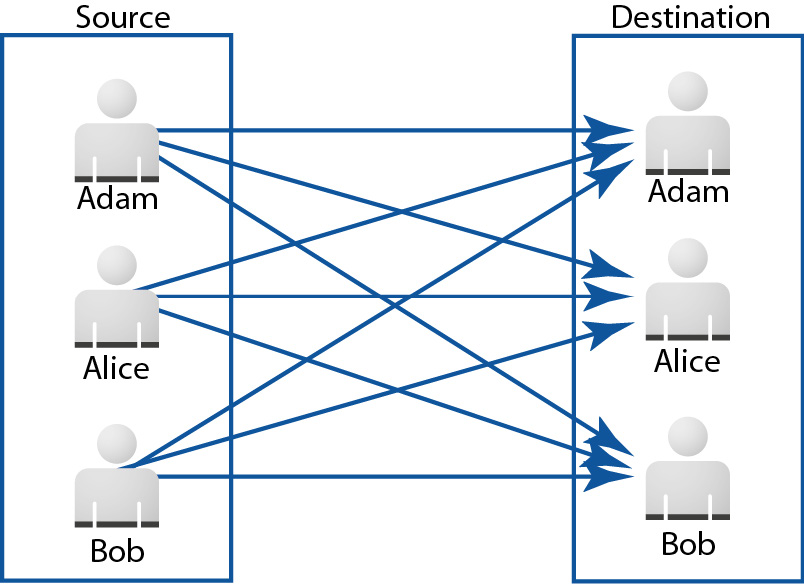
Figure 10.1. Authorizations are added from each source account to each destination account
On hosts with multiple SSH products, keys are added to the most preferred product. For example, on hosts with both Tectia and OpenSSH clients and servers, keys are by default added to the Tectia client and the Tectia server (not to OpenSSH client or server).
Product-preference order is controlled by the Key Manager Server setting
PRODUCT_PREFERENCE_ORDER For more information about configuring the product-preference
order, see the PrivX Key Manager Installation Manuals.
When requesting access between multiple sources and destinations, if Key Manager fails to authorize to/from some of the requested endpoints, it will still proceed with adding authorizations between other endpoints. Check the job's log for information about failed authorizations.
The Key Manager GUI allows you to easily add authorizations from each source account to each destination account. However, if you want to authorize all accounts from one host to corresponding (similarly named) accounts on another host, it may be more convenient to add the authorizations through the command-line client. The general syntax for adding authorizations is (detailed in add-authorizations):
$ ssh-mgr-client add-authorizations -f filename